
An account is needed for the cloud and the PRO subscription. You can draw without one – all your artworks are stored on the device.
Signing in
There's no password: you sign in with a code sent to your email.
- Open the Profile tab.
- In the Settings block, tap the Account row (it says Sign in on the right).
- Enter your email and tap Get code.
- Open the email – it contains six digits. It may take a couple of minutes; check Spam too.
- Type the code into Code from the email. As soon as all six digits are in, you're signed in (or tap Sign in).
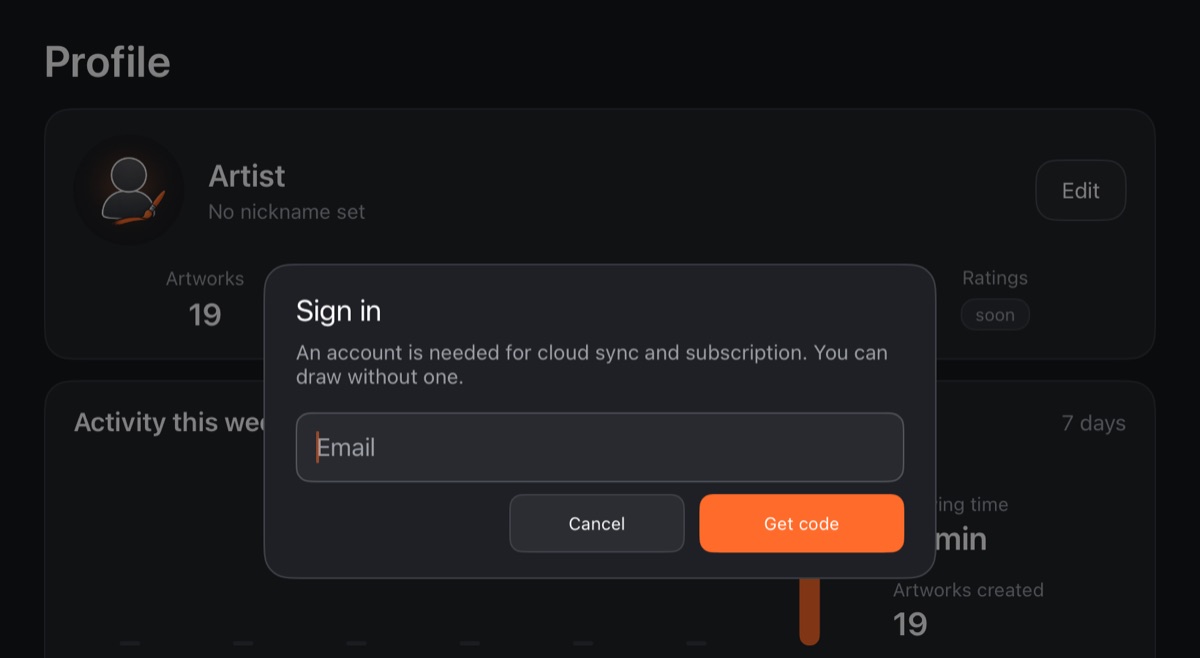
Typed the wrong address? Tap Other email. If the code has expired, request a new one. After too many codes in a row you'll need to wait an hour.
Once you're signed in, the Account row shows your email.
One device per account
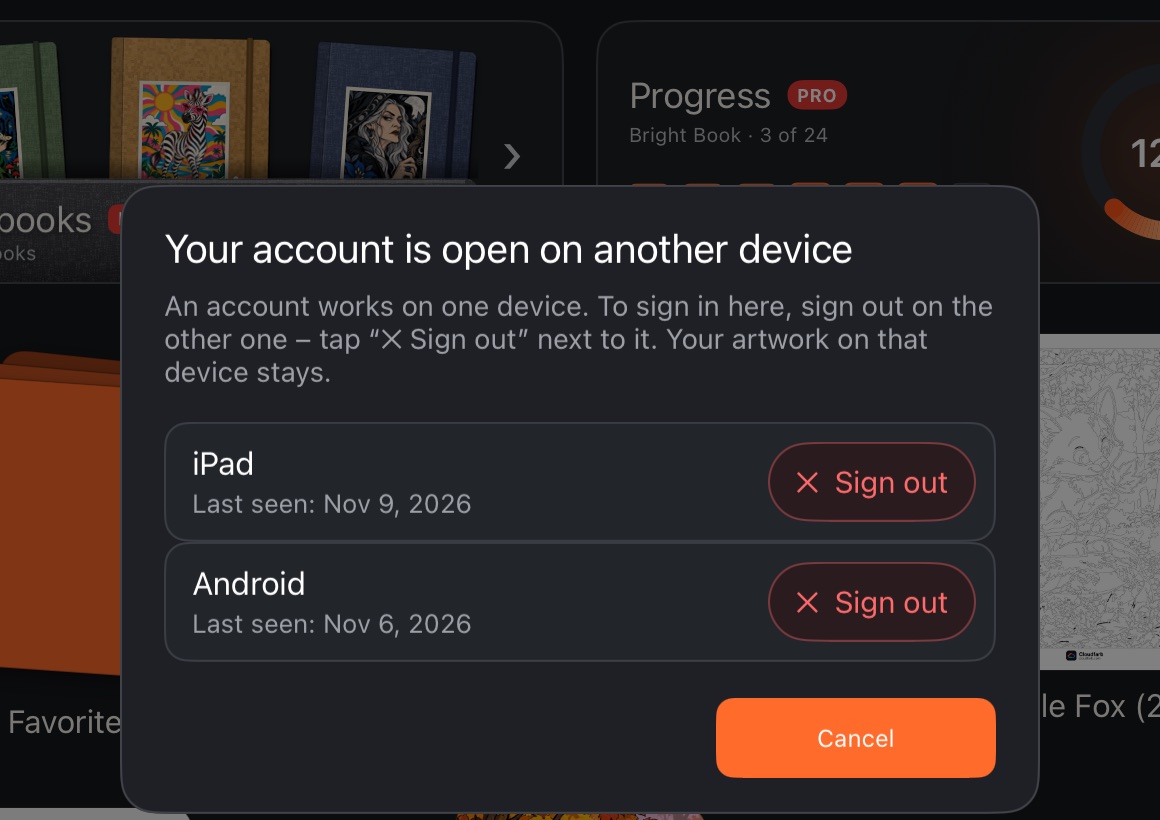
An account can be used on one device at a time. If it's already open on another device, signing in shows “Your account is open on another device” with a list of devices:
- Tap ✕ Sign out next to the old device.
- Sign-in continues here.
Your artwork on that device stays – only the device itself is signed out.
If you move your account between devices often, the app warns you: works deleted on one device may come back from another, and the app will ask before putting them back in the cloud (see Cloud).
The account window
When you're signed in, the Account row opens a window with:
- “Signed in as …” – your email;
- Other devices – where else you've signed in and when; ✕ Sign out signs that device out;
- Sign out – sign out here;
- Delete account – the red line at the bottom.
Signing out leaves your artworks on the device. Your PRO subscription stops working on this device until you sign in again.
Profile: name, nickname and avatar
Your name, nickname and avatar are stored in your account and are the same on all your devices. Without signing in you see the default avatar and the name “Artist”.
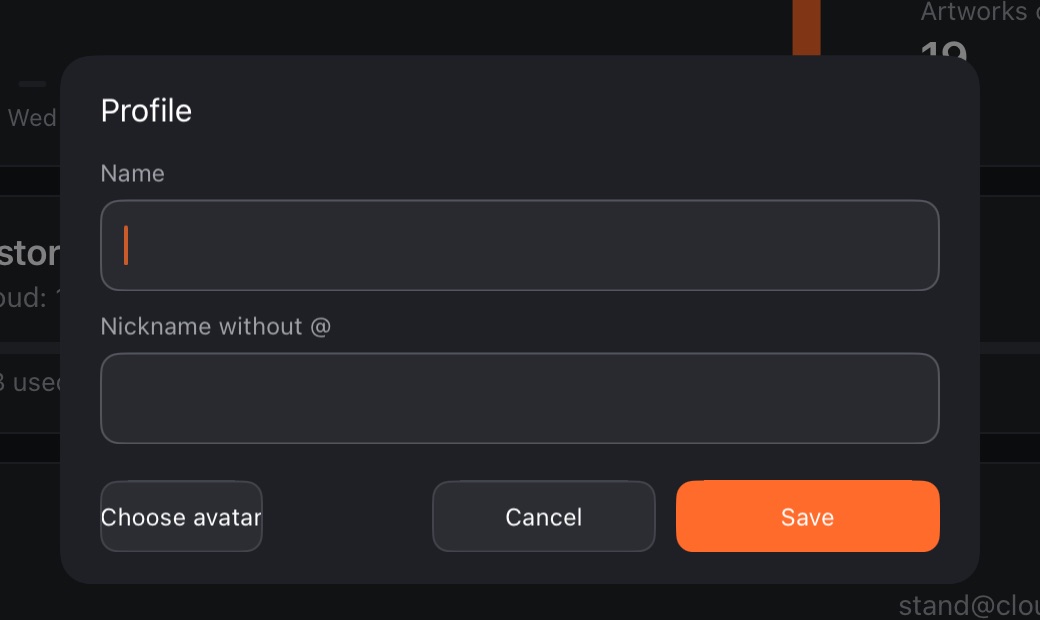
- On the Profile tab, tap Edit (on a phone – the pencil icon).
- If you're not signed in, the app offers to sign in – tap Sign in.
- Fill in Name and your nickname (without @).
- Choose avatar – pick a photo, drag it with a finger and pinch to resize.
- Tap Save.
Further down the tab are your numbers: how many artworks you have, Activity this week with drawing time per day, and Artworks created over 7 days.
Region
The Region row in your profile shows where your account, cloud and subscription are stored. The region is chosen from the country you connect from. It can only be changed through support – use Contact support in the same window.
Deleting your account
- Profile → Account → Delete account.
- Read what will be deleted and tap Delete permanently.
Your cloud (copies of your work and version history), PRO subscription and support requests are deleted for good along with the account. They can't be restored. The artworks on this device stay – you can keep drawing without an account.