
The eraser and smudge tools use brushes from the same library as painting. Each has its own brush, size and strength, and they don't disturb your main brush settings.
Eraser
- Tap Eraser on the left toolbar (below Brush).
- Erase on the canvas. The eraser only works on the selected layer.
Eraser size and strength use the same two side sliders: the top one is size, the bottom one is erasing strength (opacity). The eraser keeps its own values, so changing them doesn't touch the brush's size and opacity.
To get back to drawing, tap Brush – your brush and its size come back.
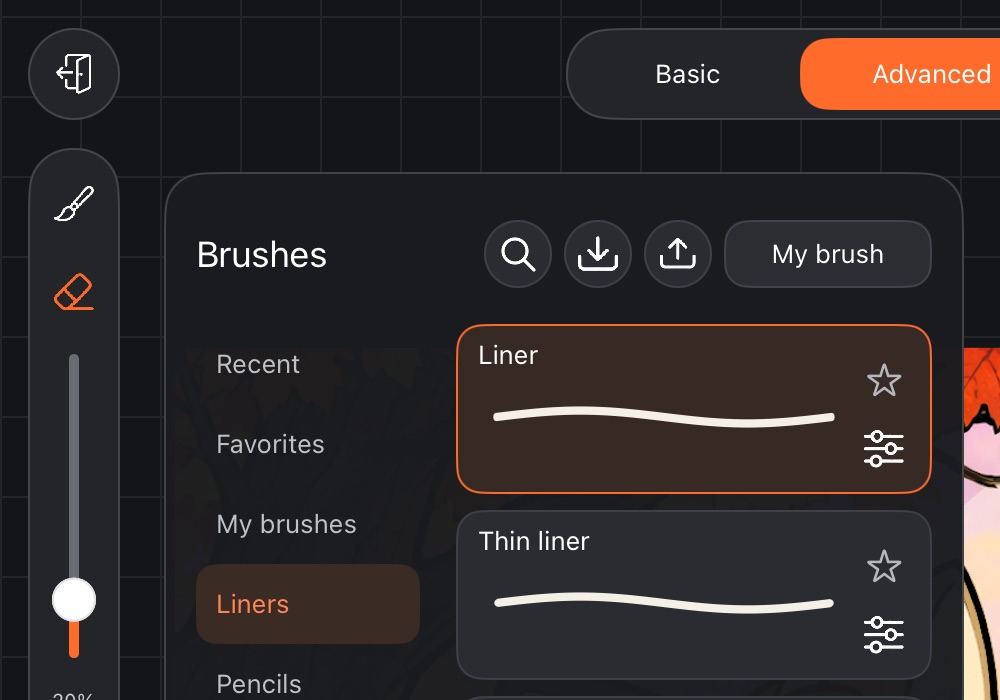
Choosing the eraser brush
- With the eraser already selected, tap Eraser again.
- The brush library opens – pick any brush.
Now the eraser erases with that brush's shape and texture: a soft airbrush, a pencil, grainy pastel. The choice is remembered for next time.
Smudge
Smudge pulls and blends paint that's already on the layer – like a finger on wet paint.
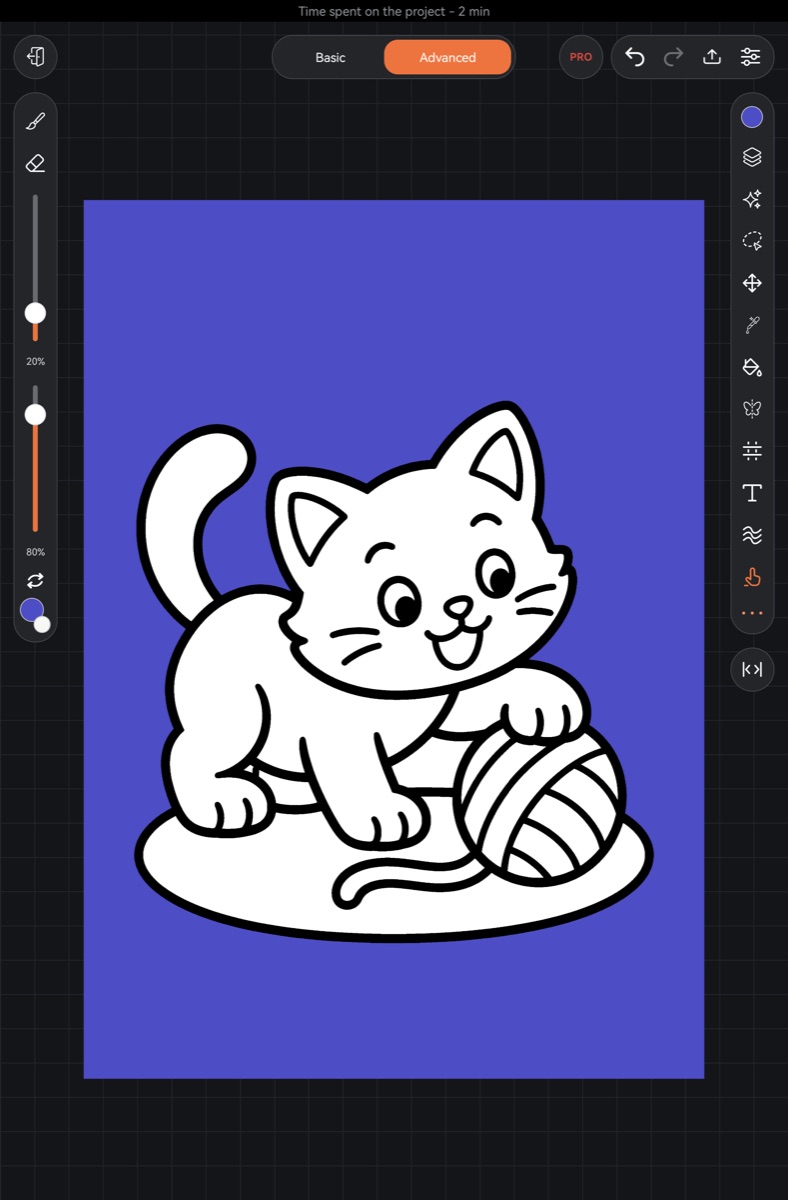
- Switch to Advanced mode with the switch at the top (on a phone it's always on).
- Tap Smudge on the right toolbar. If you don't see it, tap ••• at the bottom of the toolbar to show the remaining tools.
- Drag over the paint.
Here the bottom slider sets the smudge strength. Smudge keeps its own size and strength, just like the eraser.
Tap Smudge a second time to open the library and pick the brush to smudge with. That choice is remembered too. To get back to drawing, tap Brush.
On a tablet, smudging with a finger only works when Finger drawing is on (Settings → Misc). The pen always works.
Blending with a regular brush
The Blending shelf has the Blender, Bristle blender and Blending stump brushes. They carry no paint of their own: they only pull and mix what's there, and pressure sets the strength. You can blend with them without leaving Brush – just pick them in the library.
Per-role defaults
Brush settings have a Uses group where you set the size and opacity a brush starts with as a brush, an eraser or for smudging (rows Brush, Eraser, Smudge). See Brush settings.