
Draw a line, a circle or a rectangle freehand and hold the stylus still at the end – the stroke turns into a clean shape with the same brush. No separate tool is needed.
Drawing a shape
- Choose Brush or Eraser.
- Draw a line or outline a shape in one stroke.
- Without lifting, hold the stylus still for about half a second.
- The stroke snaps into a clean shape. Now you can lift.
What you get:
- a straight line from an almost straight stroke;
- a circle or ellipse from a closed, rounded stroke;
- a triangle from a closed stroke with three corners;
- a rectangle from a stroke with four nearly right angles; if the angles aren't right, a four-sided shape.
If the stroke doesn't look like any of these, it stays as drawn.
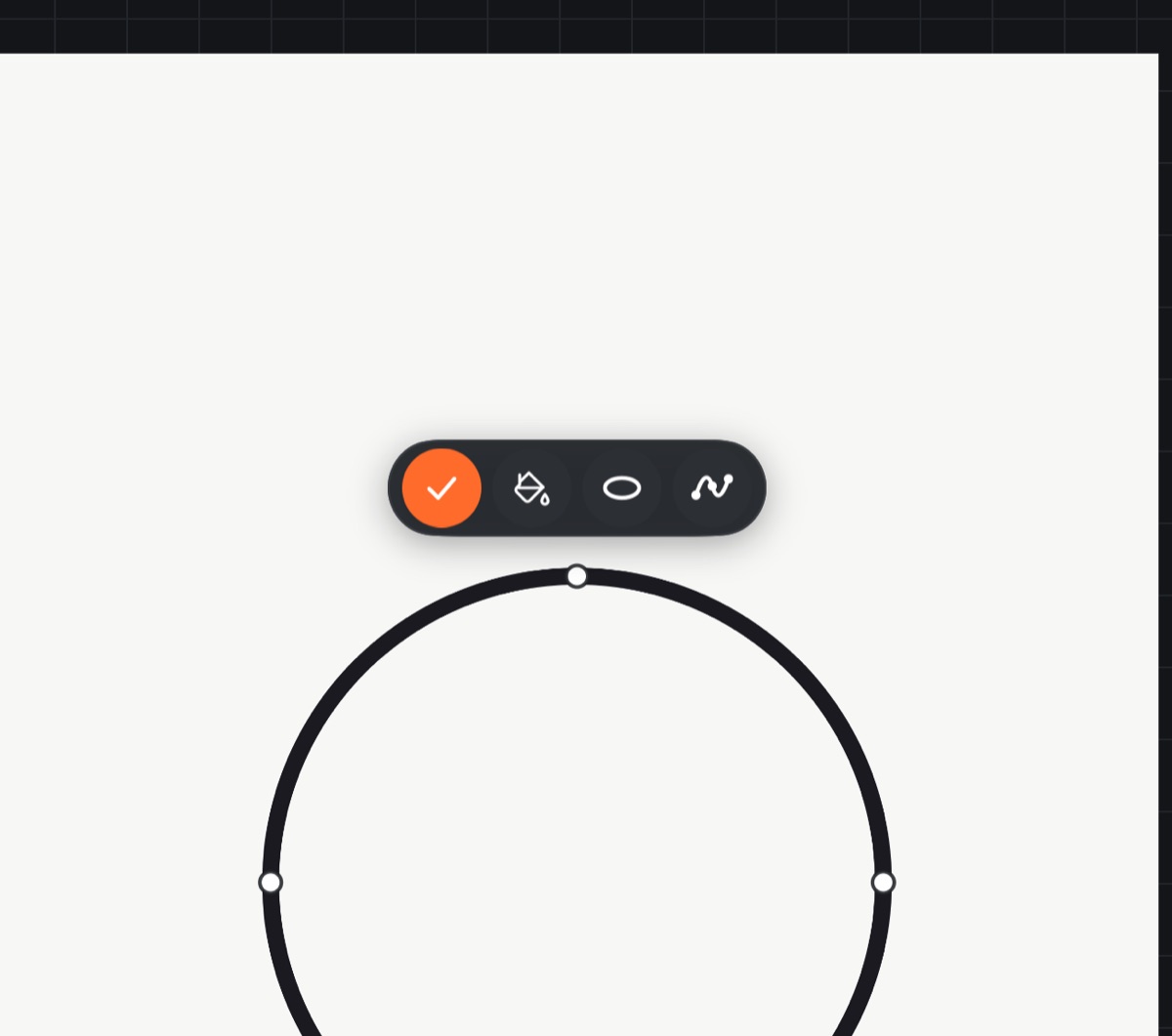
Adjusting the shape
After you lift, the shape is still "live": its points are visible, with a bar of round buttons above it.
- Drag a point to change size or form: the ends and bend of a line or arc, the radius of a circle, the corners and side midpoints of a rectangle.
- Drag the line, or inside a closed shape, to move the whole shape.
- Ellipses and rectangles have a rotation handle above them.
- Lines and rotation snap to 15° steps, a rectangle snaps to a square, an ellipse to a circle. The device gives a small tick when it snaps.
- A second finger while you hold a point frees the form: a circle becomes an ellipse, a rectangle corner moves freely.
While the shape is live, changing the brush, size or color redraws it.
Buttons above the shape
The buttons have icons only:
- Done – commit the shape.
- Fill – fill a closed shape with the current color.
- Convert: line ↔ Arc, circle ↔ Ellipse, rectangle ↔ Free corners.
- Points – while it's on, tapping the line adds a point and double-tapping a point removes it; the line flows smoothly through the points.

The shape is also committed when you start a new stroke away from it or switch tools. You can't start a new stroke inside a live closed shape – tap Done first.
A single undo removes the whole shape with all its edits.
Turning it off
Open Snap drawing (under ••• on the right bar) and tap Shapes on hold: On – it changes to Shapes on hold: Off. See Guides and symmetry.