
Two tools that work on what's already painted, using the brush. Clone carries part of the drawing from one place to another. Retouch dodges, burns, blurs or recolors wherever you brush.
Both open from the round PRO button at the top of the screen. They paint with your normal brush – its shape, size and opacity – using the size and opacity sliders on the left bar. They work on the active layer.
Clone
- Tap PRO and choose Clone.
- A circle appears on the canvas – this is the source the drawing is copied from. Drag it where you want.
- Paint where you want the copy. The source follows the brush at the same distance, and the circle shows where it's copying from right now.
You can also set the source another way: tap Set source, then tap the canvas.
Below the buttons is a status line with a dot: grey – “No source yet”, orange – waiting for you to tap the canvas, green – the source is set and you can paint.
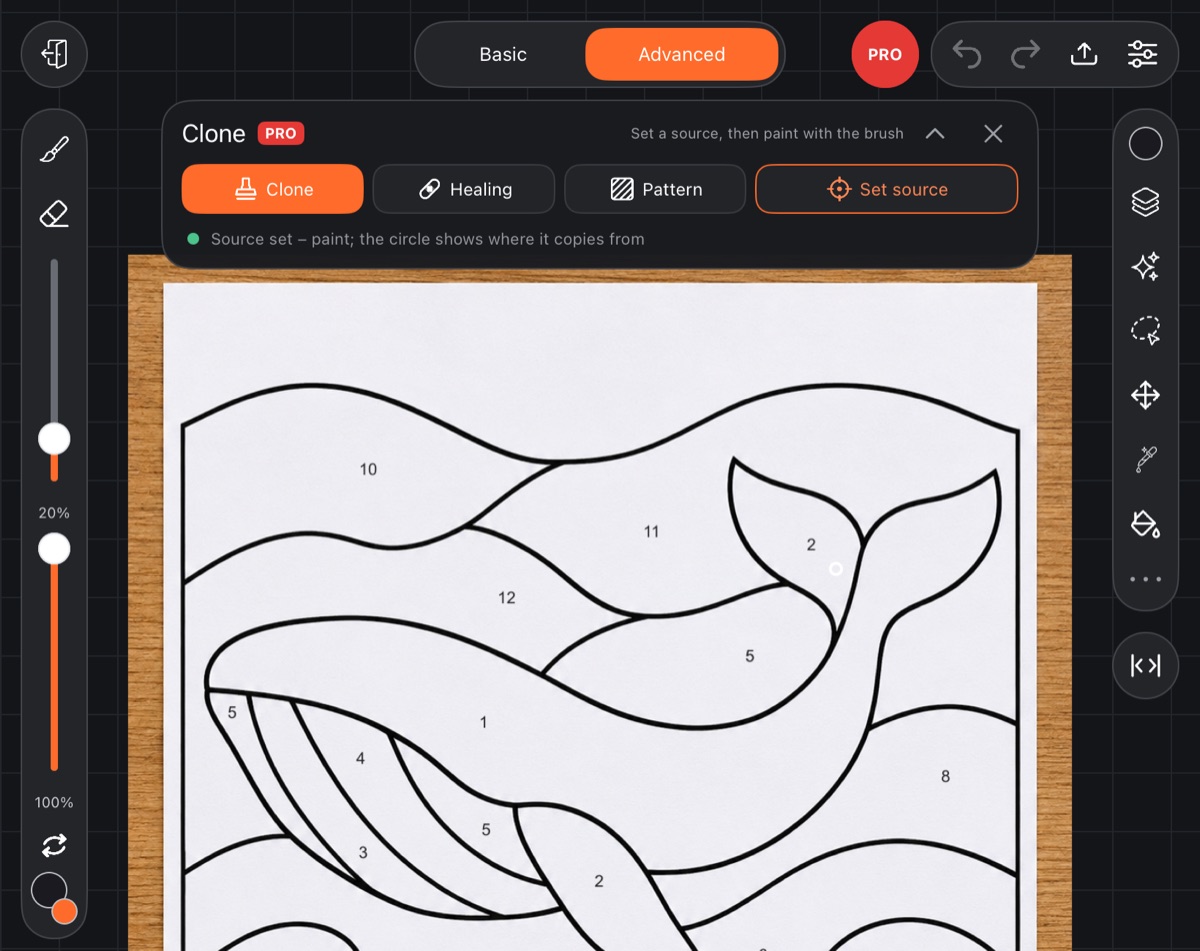
Three modes
- Clone – copies the drawing exactly.
- Healing (Heal on a phone) – takes fine detail from the source but matches color and tone to the spot you paint on. Good for stains, seams and stray dots.
- Pattern – paints a selected piece of the layer as an even tile. This mode has no source.
Painting a pattern
- Select the piece of the layer to use as the pattern (up to 2048 px per side). See Selection.
- Open Clone, choose Pattern and tap Pattern from selection.
- The selection is cleared – paint with the brush and the pattern tiles evenly.
Retouch
- Tap PRO and choose Retouch.
- Pick a mode.
- Brush over what's already drawn. The effect builds up like paint: the more you go over a spot, the stronger it gets.
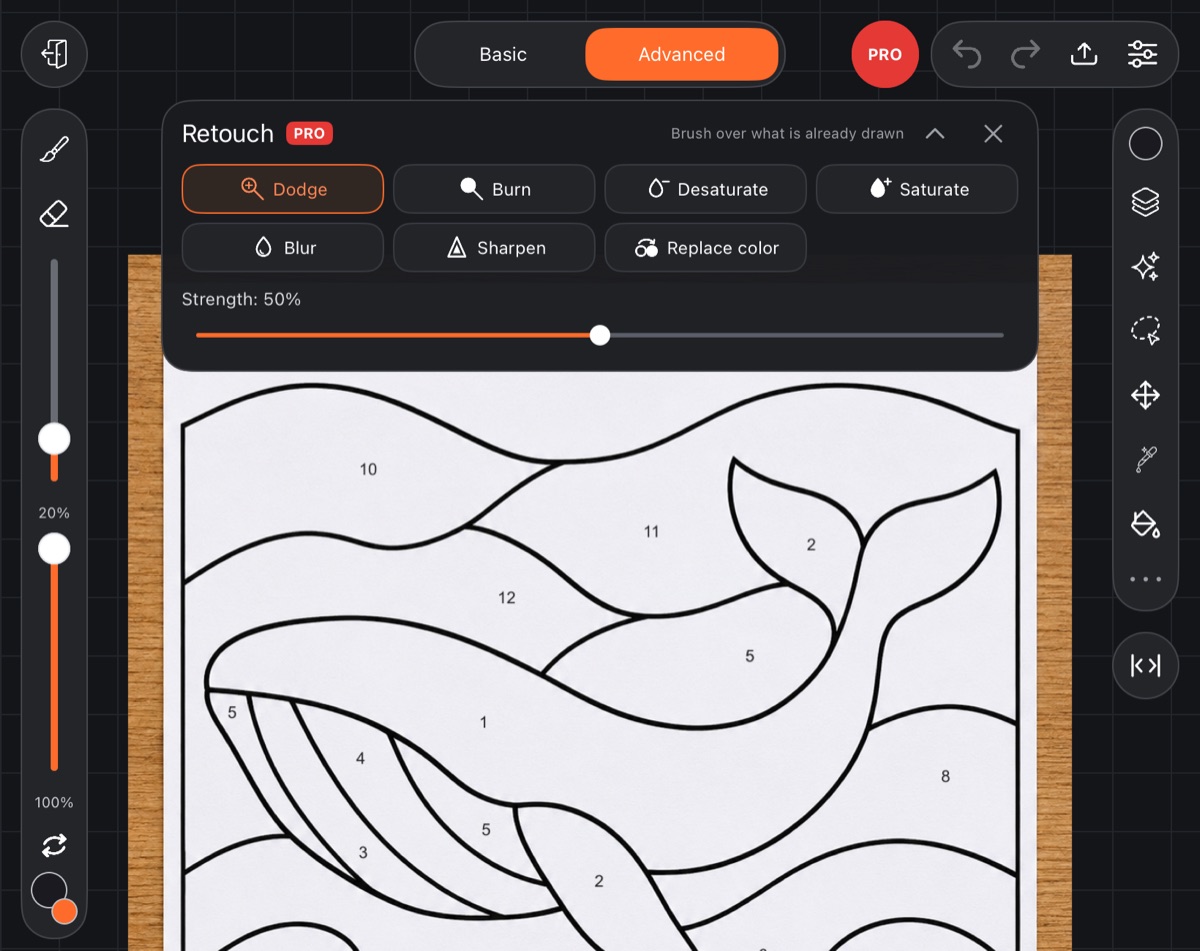
Modes:
- Dodge and Burn – lighter or darker;
- Desaturate and Saturate – less or more color;
- Blur and Sharpen – softer or crisper;
- Replace color – repaints with the hue and saturation of the brush color but keeps the original lightness, so shading and highlights stay.
The Strength slider in the panel: the middle is normal, left is weaker, right is stronger. Brush opacity on the left bar also affects how strong each stroke is.
Limits
Clone and Retouch don't work on text or vector layers – rasterize the layer from its layer menu first. Each stroke is one step, so Undo takes it back.