
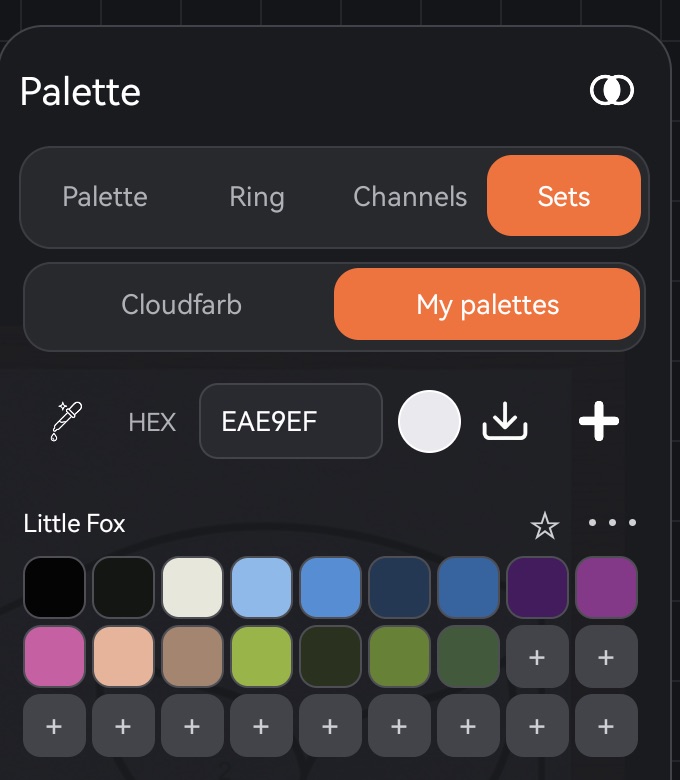
Palettes are stored in the app, not in an artwork, so the same palette is available in all your artworks. You'll find them all on the Sets tab of the palette.
Ready-made and your own
The Sets tab has two smaller tabs:
- Cloudfarb – ready-made palettes: Skin, Spring, Summer, Autumn, Winter, Forest, Sea, Sunset, Pastel and Grays. You can use them but not change them.
- My palettes – palettes you made and palettes you took from the catalog.
Tap a color in any palette to use it.
Creating a palette
On the My palettes tab, the row under the tabs has an eyedropper, a HEX field and two buttons on the right:
- Create palette (the "+" icon) – a new empty palette, "My palette N", with three rows of empty cells.
- Palette from image – see below.
There are other ways to put colors into a palette:
- touch and hold a color in Recent or Favorites on the Palette tab and choose Add to palette. A list opens: Create palette or one of your palettes. If you don't have any palettes yet, a new one is created right away;
- in color mixing, tap To palette – the whole row of shades becomes a new palette (see Color mixing);
- scan the color chart of a paper coloring page – see Palette scanner.
Filling and editing a palette
- An empty cell shows +. Pick a color (with the HEX field, the eyedropper or another tab) and tap the cell – the current color goes into exactly that cell.
- Touch and hold a color, then drag – it moves to another cell, including an empty one.
- Touch and hold a color and release without moving – a menu opens: Remove from palette and Add symbol (or Change symbol and Delete symbol if it already has one). A symbol is a number or sign of up to three characters, shown right in the cell.
The ••• button next to the palette name opens its menu:
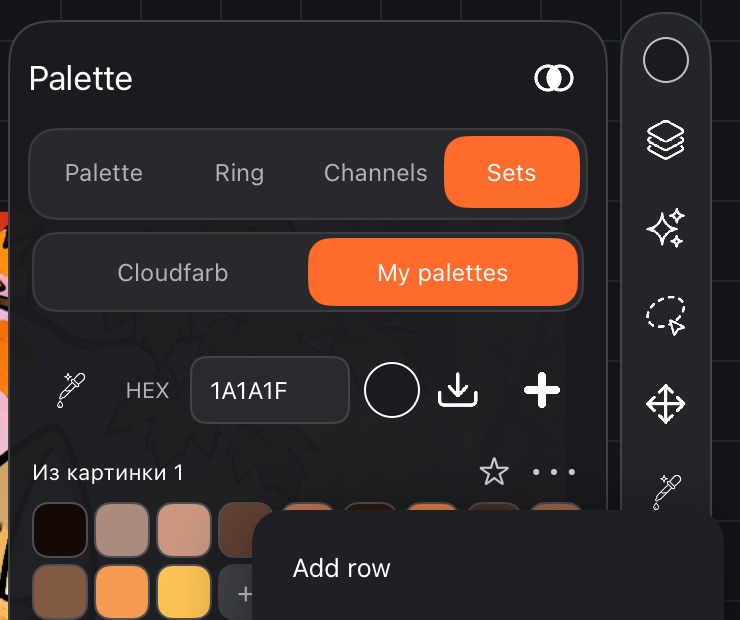
- Add row – nine more empty cells at the bottom;
- Remove row – removes the bottom row if it's empty;
- Rename;
- Delete palette.
Palette from image
Palette from image takes the main colors of a photo or drawing and turns them into a new palette, "From image N", with up to 16 colors.
- Open Sets → My palettes.
- Tap Palette from image.
- Choose a picture: on Android – From gallery or From Files, on iPad and iPhone – From Photos or From Files.
The new palette appears in the list, and a message at the bottom tells you how many colors it has.
A palette on the Palette tab
Each palette has a star next to its name. Tap it, and the palette shows up on the main Palette tab, above Favorites – no need to switch to Sets every time. Only one palette can be starred: a new one replaces the old. Tap the star again to remove the palette from the tab.