
Paper color-by-number pages usually come with a color chart: colored cells with numbers or signs. The palette scanner reads that chart and turns it into your own palette – with the same symbols as on the sheet.
Before you start
The sheet with the color chart has to be in an artwork – open a scan or photo of the page on the canvas. To bring a picture into the app, see Import.
Scanning a palette
- Open the artwork with the scanned sheet.
- Tap the round PRO button at the top of the drawing screen and choose Palette scanner.
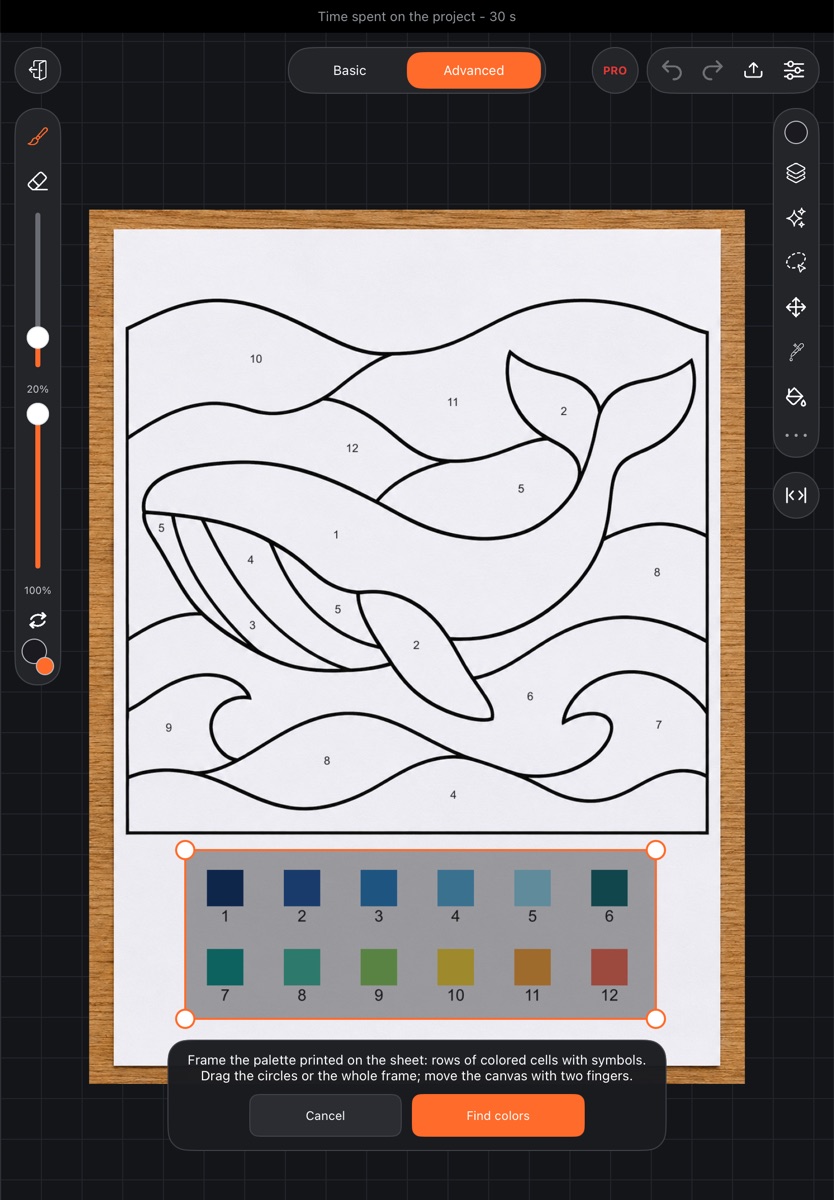
- A frame appears on the sheet. Fit it around the color chart: drag the circles at the corners or move the whole frame. You can move and zoom the canvas with two fingers.
- Tap Find colors.
While the frame is open you can't draw – only move the canvas. Cancel closes the frame.
Checking the result
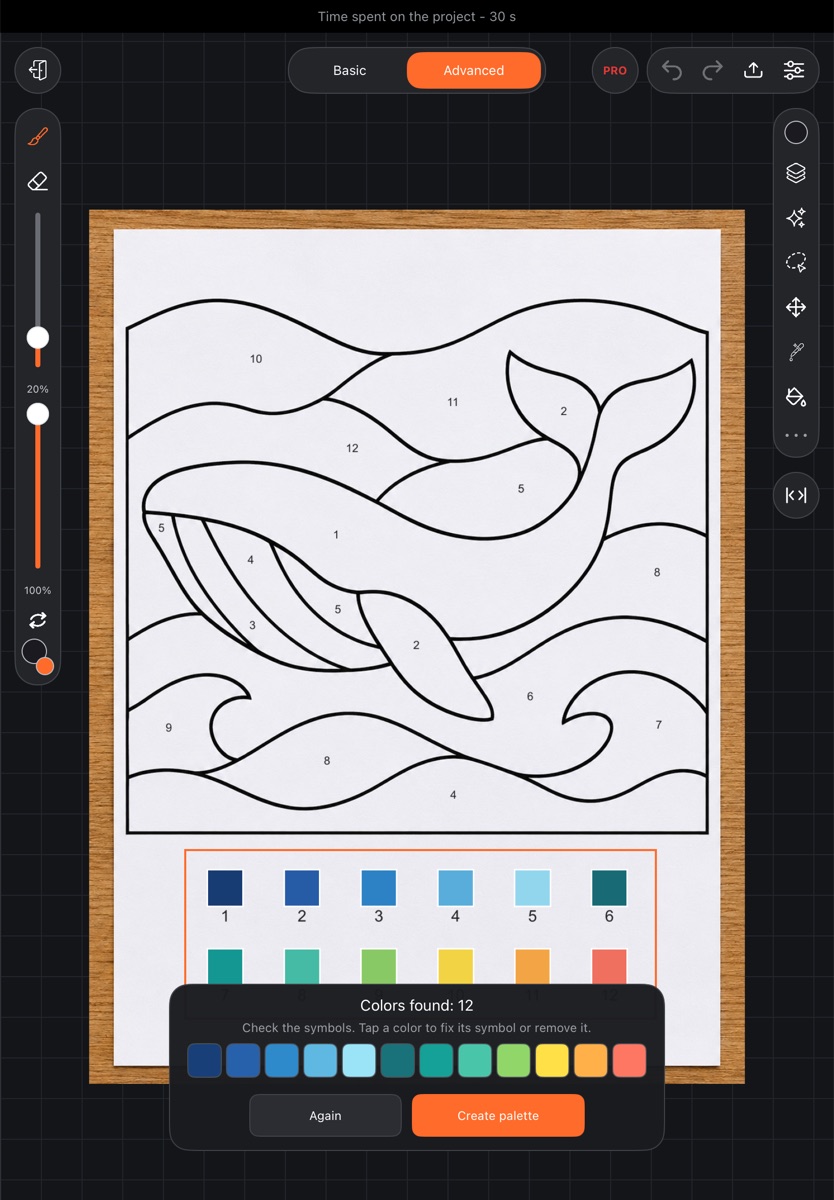
After the search, Colors found: N appears at the bottom along with every color found and its symbol. The cells that were found are also outlined on the sheet.
Check the symbols. Tap a color to fix it:
- Change symbol – type a number or sign, up to three characters;
- Remove color – the color won't go into the palette.
Again takes you back to the frame. Create palette saves the result.
Your new palette
The palette "From scan N" appears in the palette under Sets → My palettes. The symbols on its colors look just like on the sheet. Identical colors are merged into one cell.
From there it works like any palette of your own – move colors around, change symbols, star it to show it on the Palette tab. See My palettes.