
A gradient is a smooth blend between colors that you drag right across the canvas. You see it live while you adjust it, and it goes into the layer only when you tap Apply.
Drag a gradient
- Select the layer you want the gradient on.
- Tap the round PRO button at the top of the screen and choose Gradient.
- Drag across the canvas with your finger or pen – from where the gradient should start to where it should end.
- Tap Apply. The gradient goes into the layer as one step, so Undo takes it back.
If there is a selection, the gradient stays inside it.
By default the gradient runs from the brush color to the same color, fully transparent.
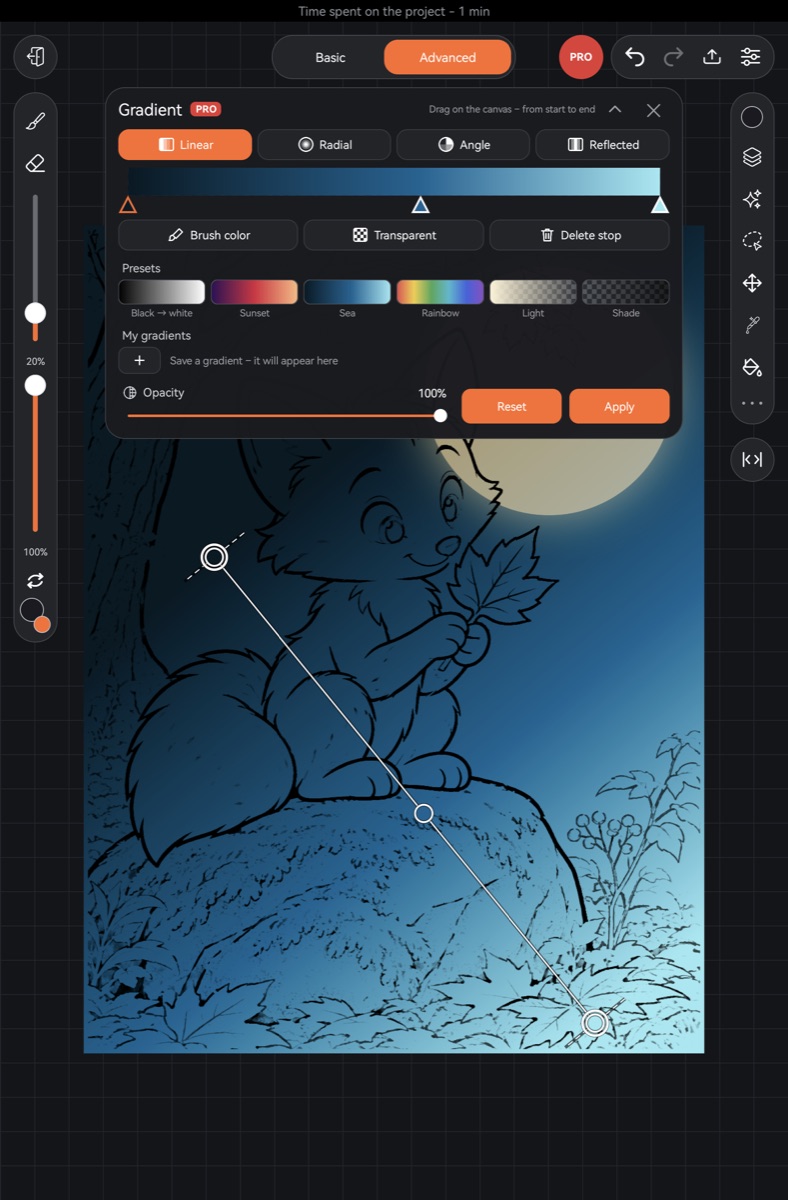
Gradient type
The top of the panel has four types: Linear, Radial, Angle and Reflected. You can switch type after dragging – the gradient redraws right away.
The line on the canvas
- Drag the round handles at the ends to move the start, the end and the direction.
- Tap the line to add a stop in the brush color.
- Slide a stop along the line. Drag it far off the line and it is removed when you lift your finger (as long as there are more than two stops).
- Drag somewhere off the line to start a new gradient from that point.
Stops and colors
Below the types is a strip showing the gradient, with triangle stops underneath.
- Tap an empty spot on the strip to add a stop in the brush color. Stops can be dragged.
- Change the selected stop with the buttons below:
- Brush color – recolor it with the current brush color (pick the color in the palette first);
- Transparent – make the stop transparent; tap again to make it solid;
- Delete stop – a gradient always keeps at least two.
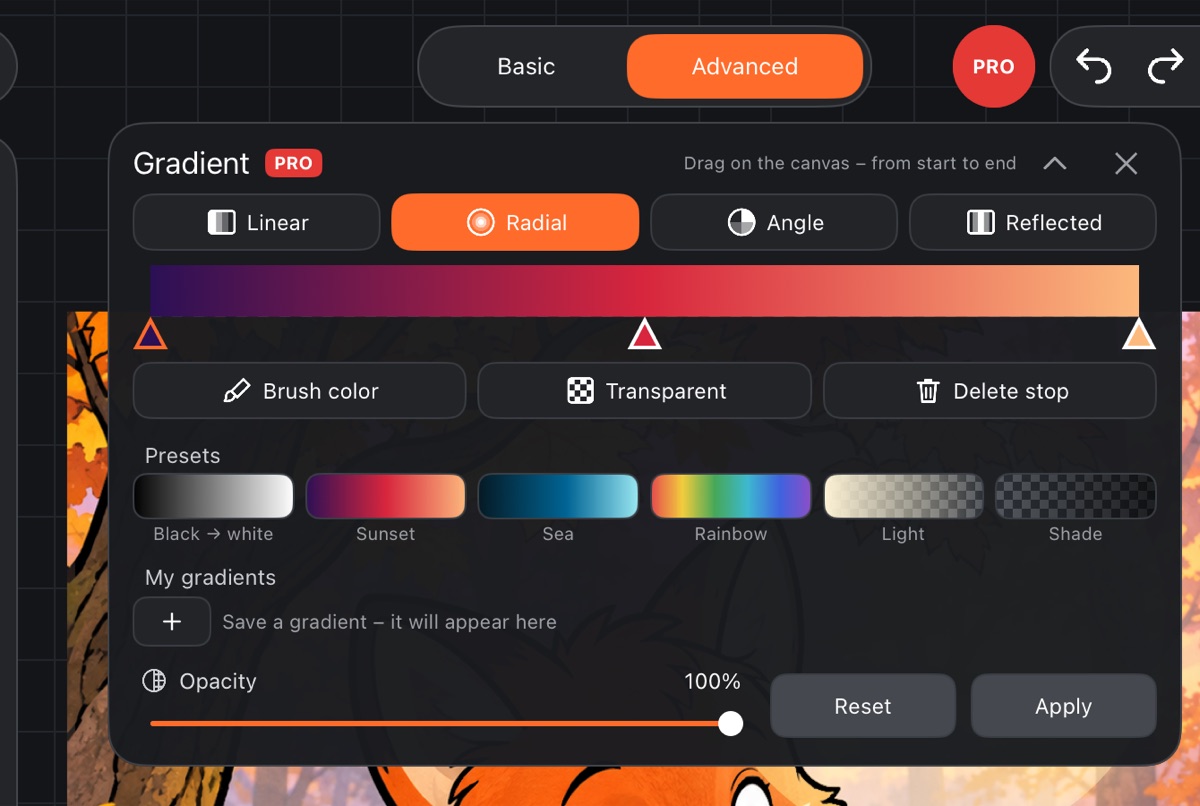
Presets and your own gradients
- Presets – ready-made gradients: Black → white, Sunset, Sea, Rainbow, Light, Shade. Tap one to load its stops.
- My gradients – the + button saves the current stops. Tap a saved gradient to use it; press and hold to delete it.
Opacity, Reset and Apply
- The Opacity slider sets how dense the whole gradient is.
- Reset removes the dragged gradient and restores the layer; your stops stay as they are.
- Apply writes the gradient into the layer.
A gradient can't go on a group or a vector layer. It also can't go on a hidden or locked layer – you'll see “This effect can't be applied to this layer”.