
Color mixing shows two colors and a row of shades between them. It's handy for smooth transitions: pick the shades one by one and lay down strokes in steps.
Opening it
- Open the palette.
- Tap the Mix button in the palette header – on a tablet it's at the right end of the header, on a phone it's just before the ✕.
Tap the button again to go back to the tab you came from.
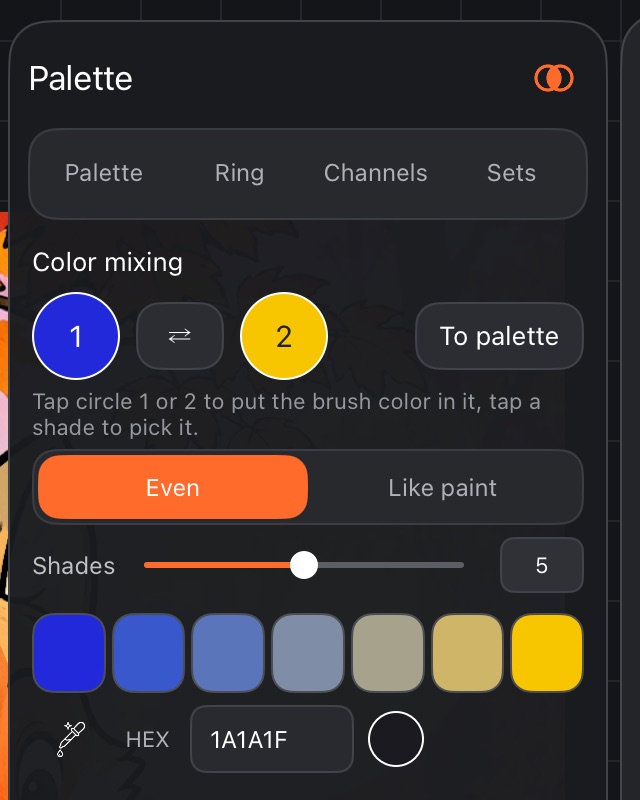
Mixing two colors
- Pick the first color (with the eyedropper, the HEX field or another tab) and tap circle 1 – the brush color goes into it.
- Pick the second color and tap circle 2.
- A row appears below: the first color, the shades in between and the second color.
- Tap a shade in the row to make it the brush color.
The ⇄ button between the circles swaps the two colors.
The first time you open it, circle 1 holds the current brush color and circle 2 is white. After that, the panel remembers your colors, the method and the number of shades.
Even or like paint
- Even – the steps look equal in lightness and saturation, and the middle doesn't turn gray.
- Like paint – colors mix the way paints do on a palette: blue and yellow make green, blue and red make purple.
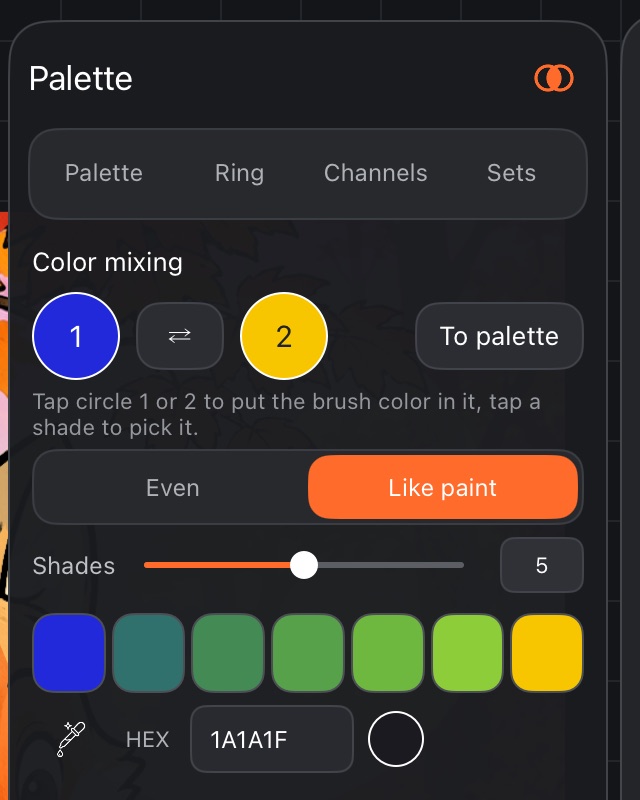
Number of shades
The Shades slider sets how many shades sit between the two colors – from 1 to 9. The number is shown to the right of the slider.
Saving the row as a palette
Tap To palette – the whole row, including the two end colors, becomes a new palette, "My palette N". A message at the bottom tells you which palette the shades went to. You'll find it under Sets → My palettes – see My palettes.