
Progress is a tracker for people who color coloring books. You create a progress for a coloring book with the number of pages it has, put your artworks on its pages and mark the finished ones. The app counts the percentage, time spent and your pace by itself. No streaks, no competition.
Where to find it
- The Tools tab → Progress.
- Or the Progress banner at the top of the gallery. You can hide or show the banner in the gallery Settings with the Progress switch.
Create a progress
- Tap Create progress.
- Enter a Progress name and the Number of pages (24 is filled in), then tap Create.
Or tap From a gallery folder in the same window and choose a folder – for example, the folder of an imported PDF (Coloring pages from PDF and the catalog). The artworks from the folder are placed on the pages in order. Such a progress remembers its folder: new artworks in the folder are added, and ones removed from the folder leave the progress too.
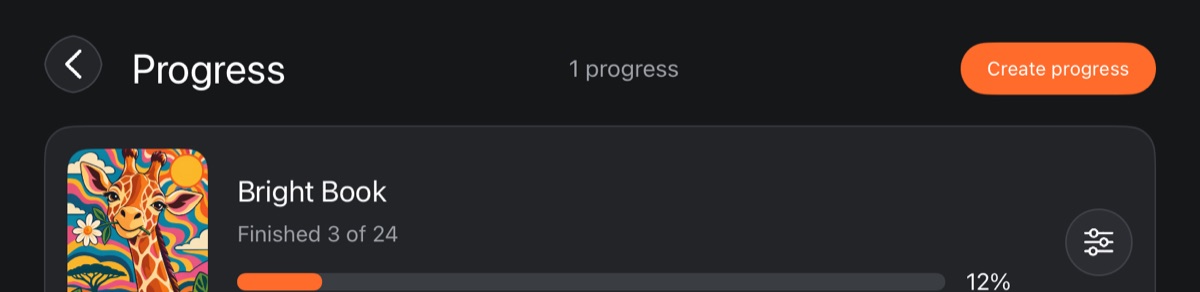
In the list, every progress shows its cover, “Finished 3 of 24”, a bar and the percentage. Hold a progress, or tap the round button on its right, for the menu: Rename, Change cover, Show in gallery, Delete. Deleting it leaves the drawings from its pages in the gallery.
Inside a progress
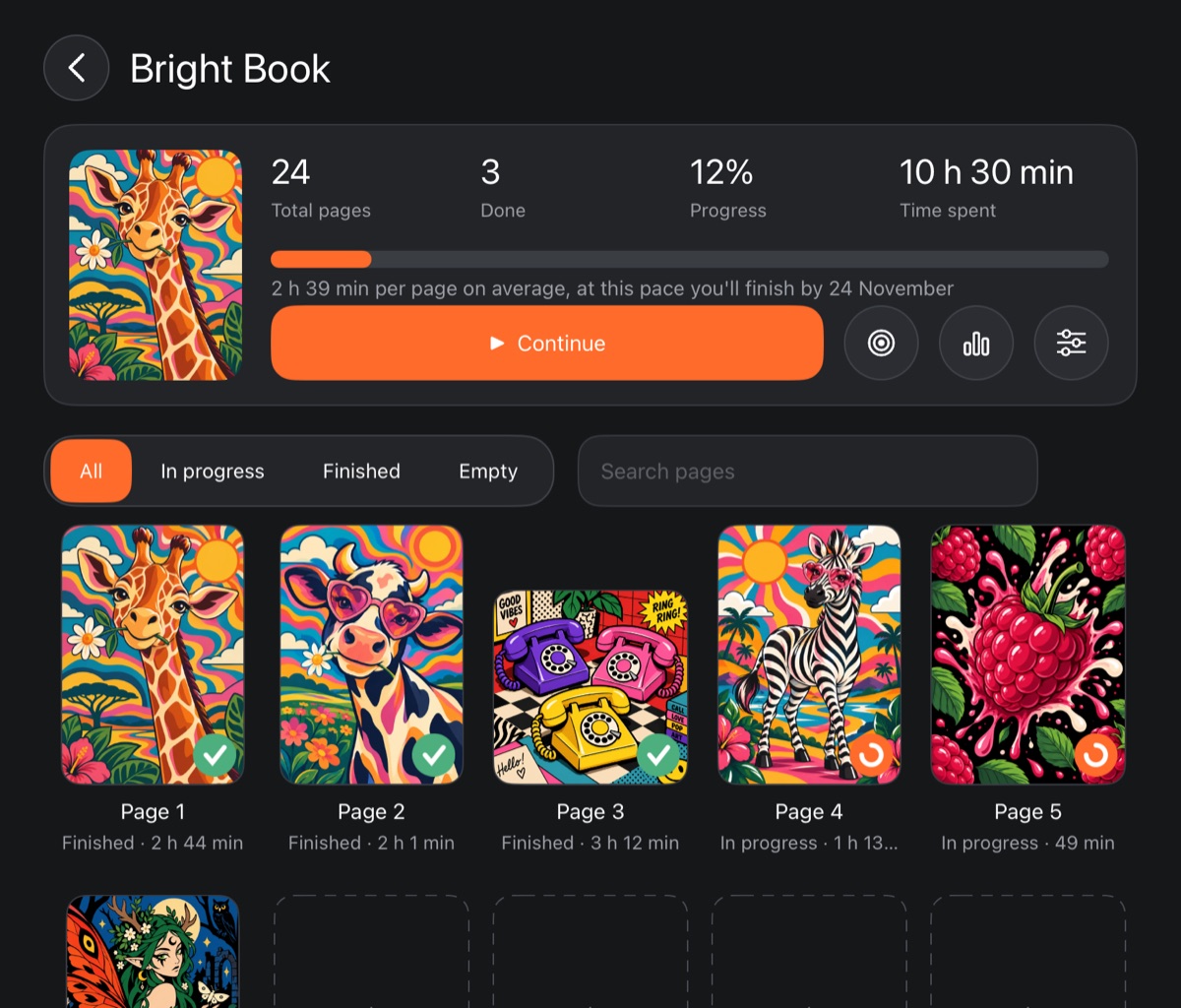
At the top are the cover and the numbers: Total pages, Done, Progress in percent and Time spent. Once at least two pages are finished, a forecast appears below: how long a page takes on average and the date you'll finish at this pace.
- ▶ Continue opens the artwork you worked on last.
- The round buttons next to it are the monthly goal, the activity feed and Progress settings (Add pages, Save collage, Page order, Rename, Change cover, Show in gallery).
- Search pages and the All, In progress, Finished, Empty filters.
Pages
- Tap an empty page to choose artworks. Select several and tap Place: they fill the pages in a row, starting from this one.
- Tap a page with an artwork to open it on the canvas.
- Hold a page for the menu: Mark as finished, Mark as “in progress”, Mark as “not started”, Replace artwork, Photo of a paper sheet, Take a photo, Title and note, Remove from page, Move earlier and Move later, Delete page.
You decide when a page is finished: the percentage counts finished pages only. As soon as an artwork gets its first strokes, its page switches to “in progress” by itself. Time spent comes from the artwork and is shown under the page.
Paper coloring books work too: fill a page with a photo of the sheet (Photo of a paper sheet or Take a photo). Such pages have a mark and dates, but no time spent.
When the whole coloring book is done, the app celebrates with you, and 🎉 Results replaces Continue.
Monthly goal
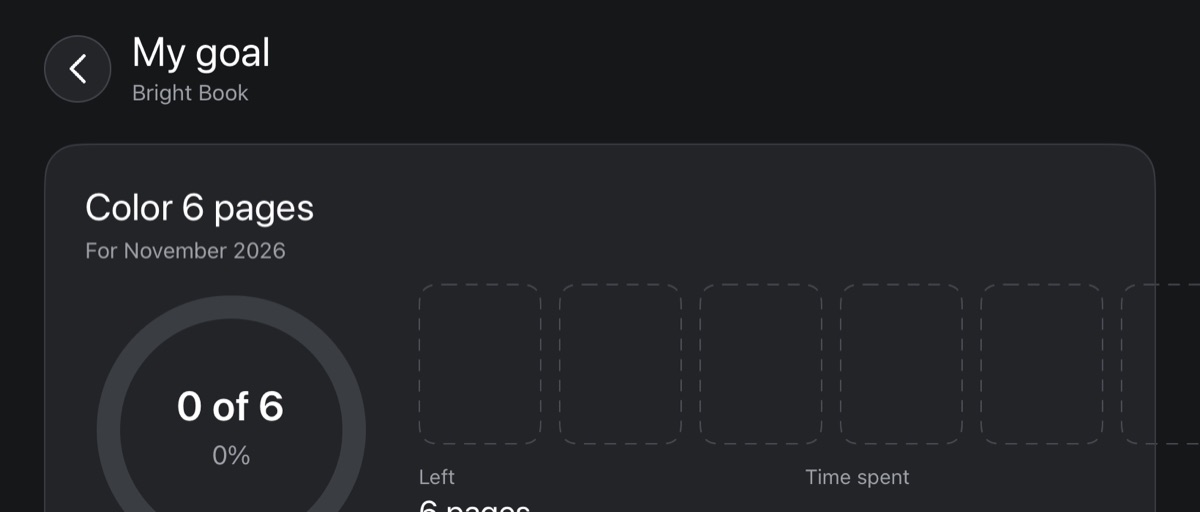
The goal button opens My goal.
- Tap Set a goal and enter how many pages to finish this month.
- If you like, turn on Remind me once a week.
The screen shows a “3 of 5” ring, the pages finished this month, what's Left and Time spent. You can change the goal (✎ Change goal) or remove it (Remove goal). When the goal is reached, tap Goal reached – summary card: you can Save card to your device photos or Share it.
Activity feed
The second round button opens the Activity feed for 2 weeks, a Month or All time. It shows finished pages, total time, the average per page and the fastest page, drawing time by day, and – if you have a goal – whether you're on track.
The gallery banner
The Progress banner shows the numbers of one progress: the one you picked with Show in gallery, or the one you worked on last. Hold the banner to choose: All, Latest progress or a specific progress.