
You can color your own coloring books from PDF files, or ready-made color-by-number pages from the Catalog tab. Every page becomes its own artwork in the gallery.
Import a coloring book from PDF
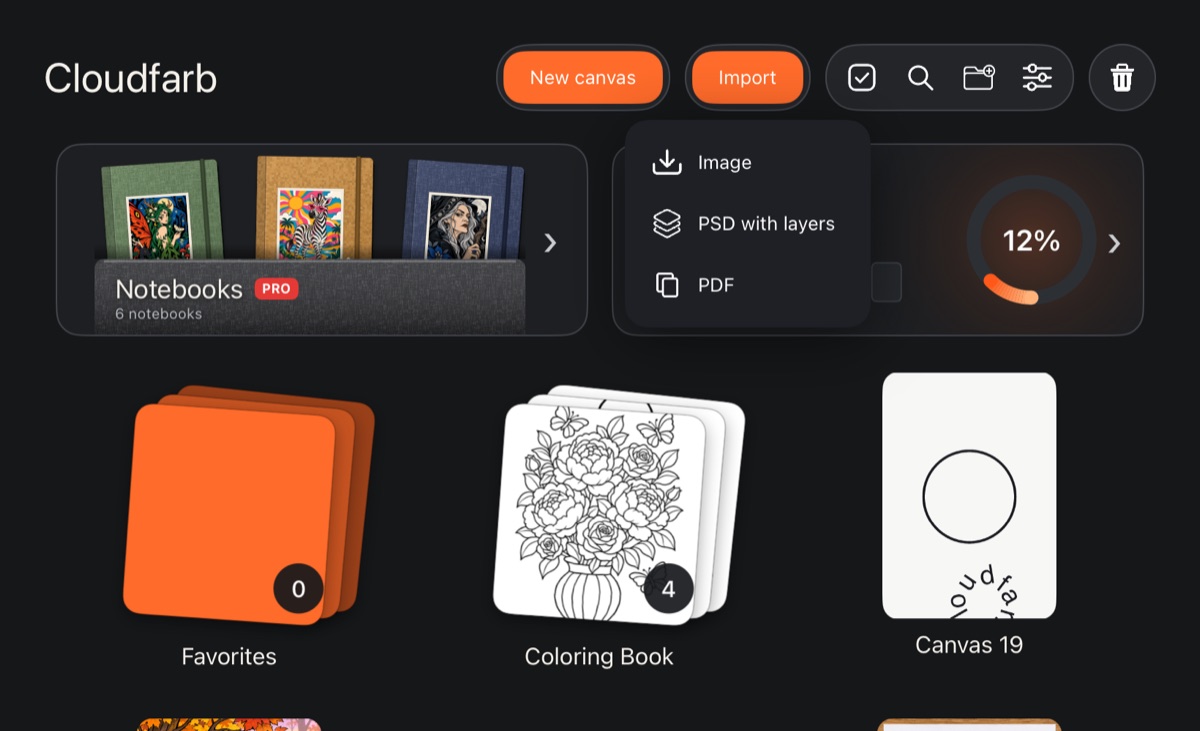
- In the gallery, tap Import.
- Choose PDF and pick the file.
- Wait for the import window – it shows how many pages are done.
What you get:
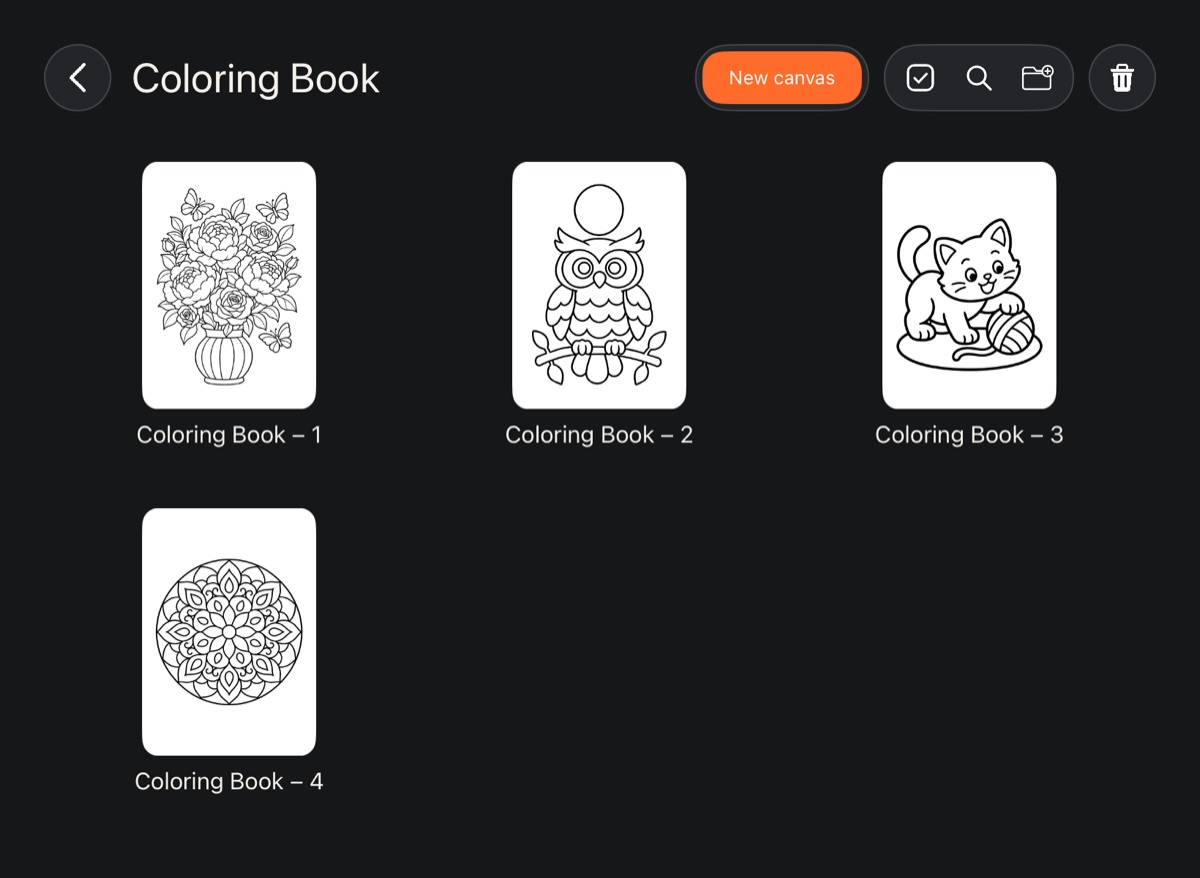
- A multi-page PDF arrives as a folder named after the file. The pages inside are named after the file with a number – “Coloring – 1”, “Coloring – 2” and so on, in order.
- A single-page PDF becomes one artwork, without a folder.
- Each page opens at its real size at 300 dpi: an A4 sheet becomes an A4 artwork with crisp lines. Pages smaller than A4 are scaled up to A4.
- The page background is white.
To color without touching the line art, add a new layer above the page – see Layers: the basics. Importing other files is covered in Import.
Keep track of a coloring book
A PDF folder is easy to turn into a Progress tracker: its pages are placed in order, and the app counts finished pages and time spent. In the Tools tab open Progress → Create progress → From a gallery folder and choose the folder. More in Coloring progress.
Ready-made coloring pages from the catalog
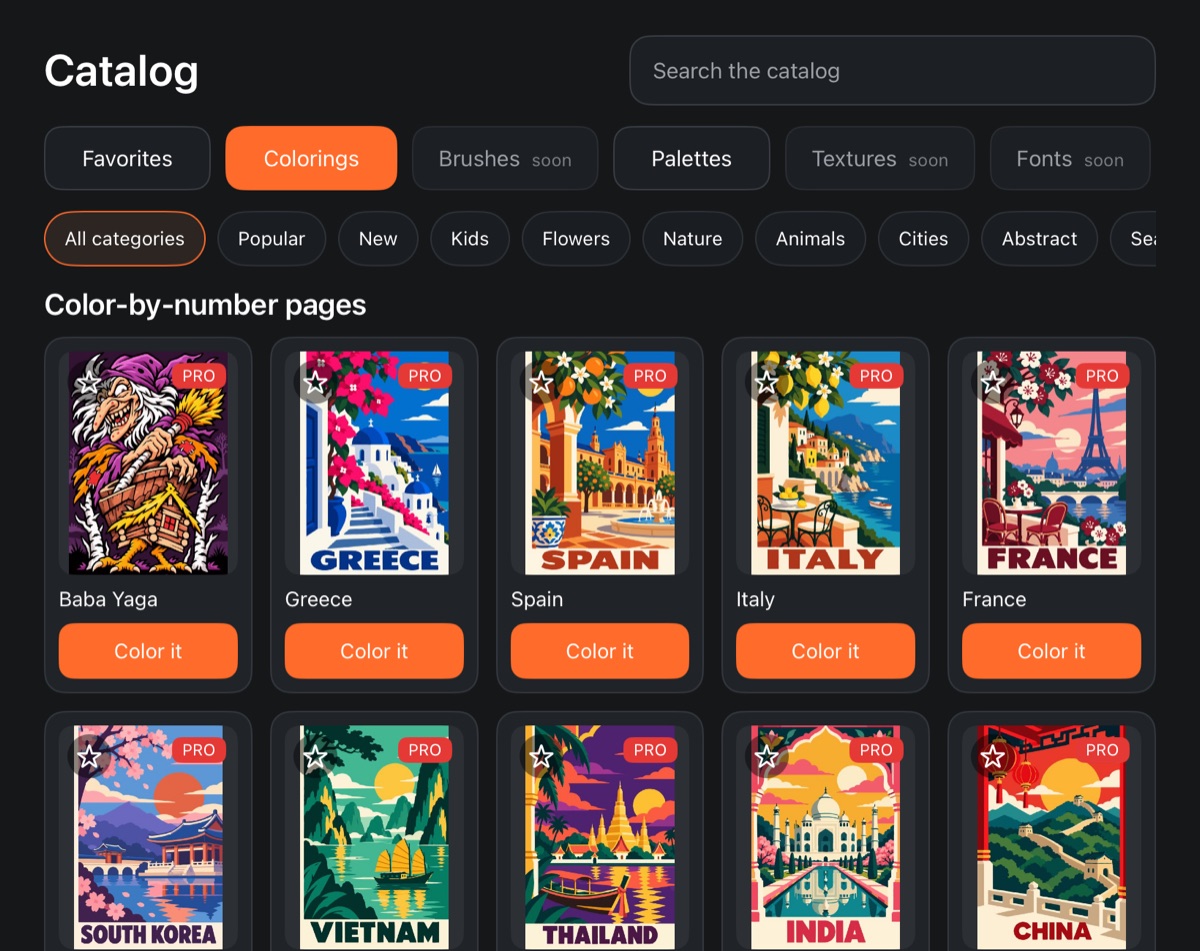
In the Catalog tab, the Colorings section holds color-by-number pages that are already split into numbered areas with a palette.
- At the top is Search the catalog, next to it the categories, such as Flowers or Animals. On a wide screen the categories are on the left; on a narrow one they sit in a row above the sections.
- Tap a picture to see it full screen: first the Reference (how it will look), swipe to see the numbered Coloring page.
- The star in the corner of a card adds it to Favorites.
- Color it creates a new artwork and opens it on the canvas right away.
In an artwork from the catalog the numbered sheet is the background, with a clean Paint layer above it, and the brush is already on that layer. If the page has a reference, it sits on a hidden top layer – turn it on when you want to check colors. The page's palette appears in the palette panel, with each number right inside its color circle. How to use it is in Color by number.
The catalog needs an internet connection. The last list it loaded is kept on the device, so the tab still opens offline.