
The first time you open Cloudfarb, it asks for your language, briefly introduces itself and offers a short tour. You can skip all of it and bring it back later.
Choosing a language
The first window is “Выберите язык · Choose language” with two buttons: Русский and English. The one that matches your device language and country is highlighted. Tap the one you want and the app continues in it.
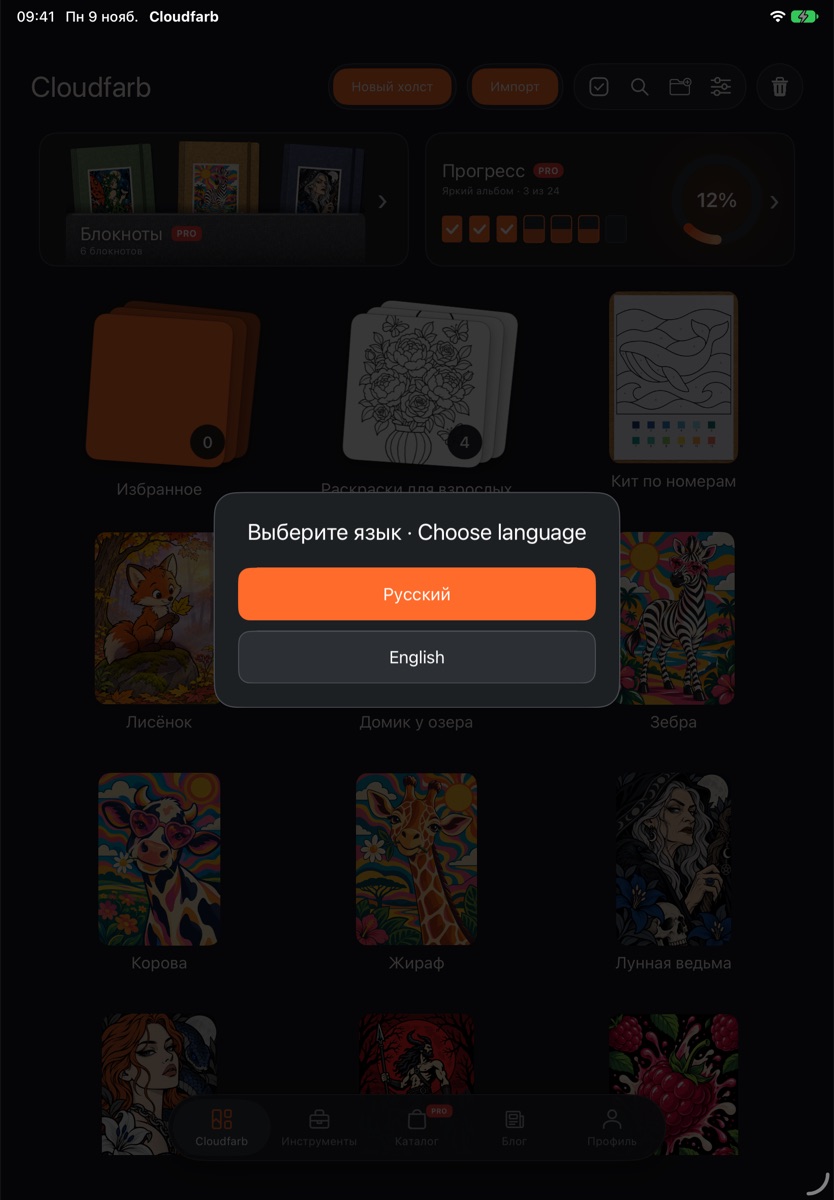
You can change the language at any time: in the gallery, tap Settings (the gear at the top) and pick the Language row. See Settings for more.
Splash screen
When the app starts in the gallery, it plays a short splash – a drop of paint and the Cloudfarb title, about two seconds long. The gallery loads underneath, so it doesn't slow the start. Tap the screen and the splash fades out right away.
There is no splash if system animations are turned off on Android, or if Reduce Motion is on on iPad and iPhone.
Welcome card
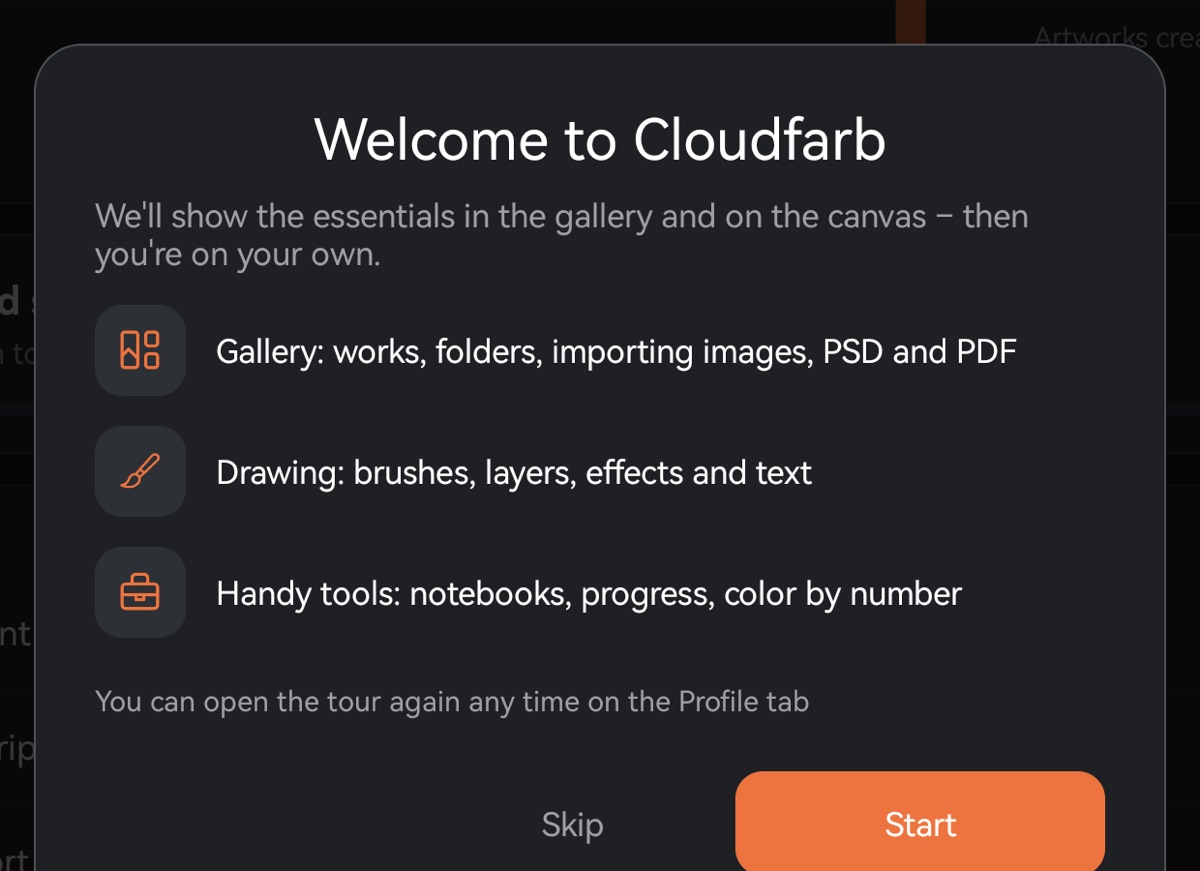
Next comes the “Welcome to Cloudfarb” card, listing what the app offers: the gallery, drawing and handy tools.
- Skip takes you straight to the gallery.
- Start begins the step-by-step tour.
On first launch the gallery also gets a work called “Test project” (an A4 sheet of white paper). It's a good place to try out brushes. It's a regular artwork – rename or delete it whenever you like.
Gallery tour
After Start, the app highlights the main buttons one by one and explains them: New canvas, Import, the new folder button, Settings, Trash, Notebooks, Progress, Favorites, the buttons next to a lifted artwork card and the tabs at the bottom of the screen.
- Read the tip in the bubble. The step number is shown at the top – “Step 2 of 18”.
- Tap Next to move on.
- Skip ends the tour at any point.
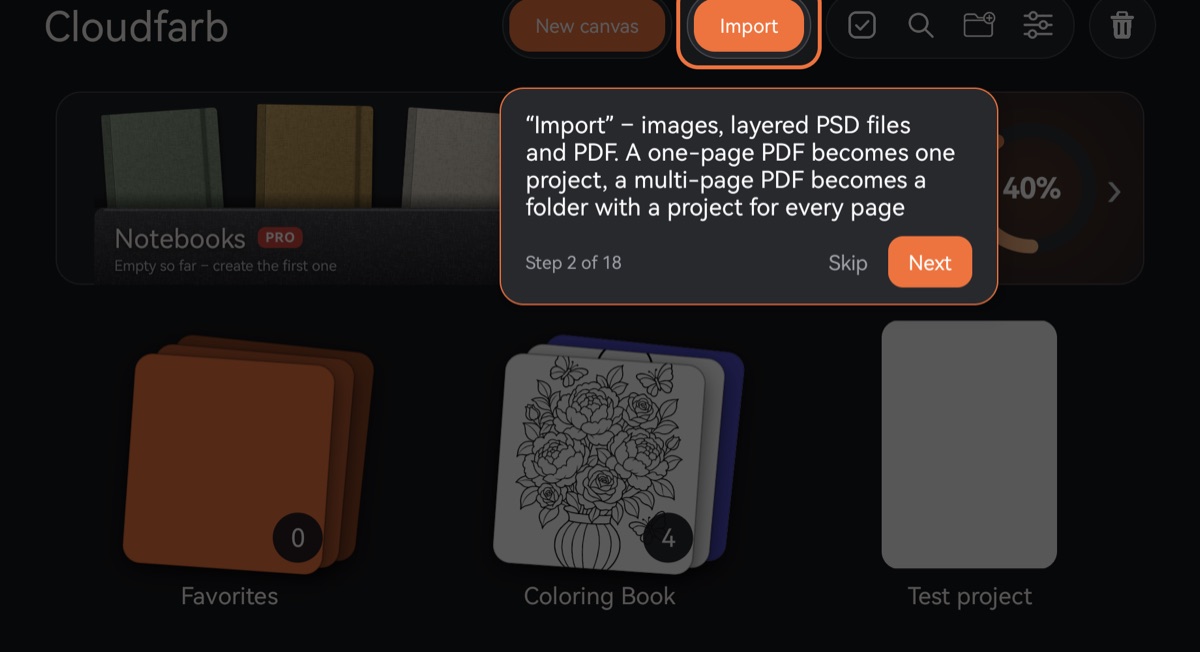
The last step suggests opening any artwork. There's no step-by-step tour on the canvas – each tool introduces itself instead.
Tool tips
The first time you open a tool – brush, eraser, palette, layers, selection, text and others – a card appears with the tool's name and two to six short steps with icons. Tap Got it and that card won't show again for this tool.
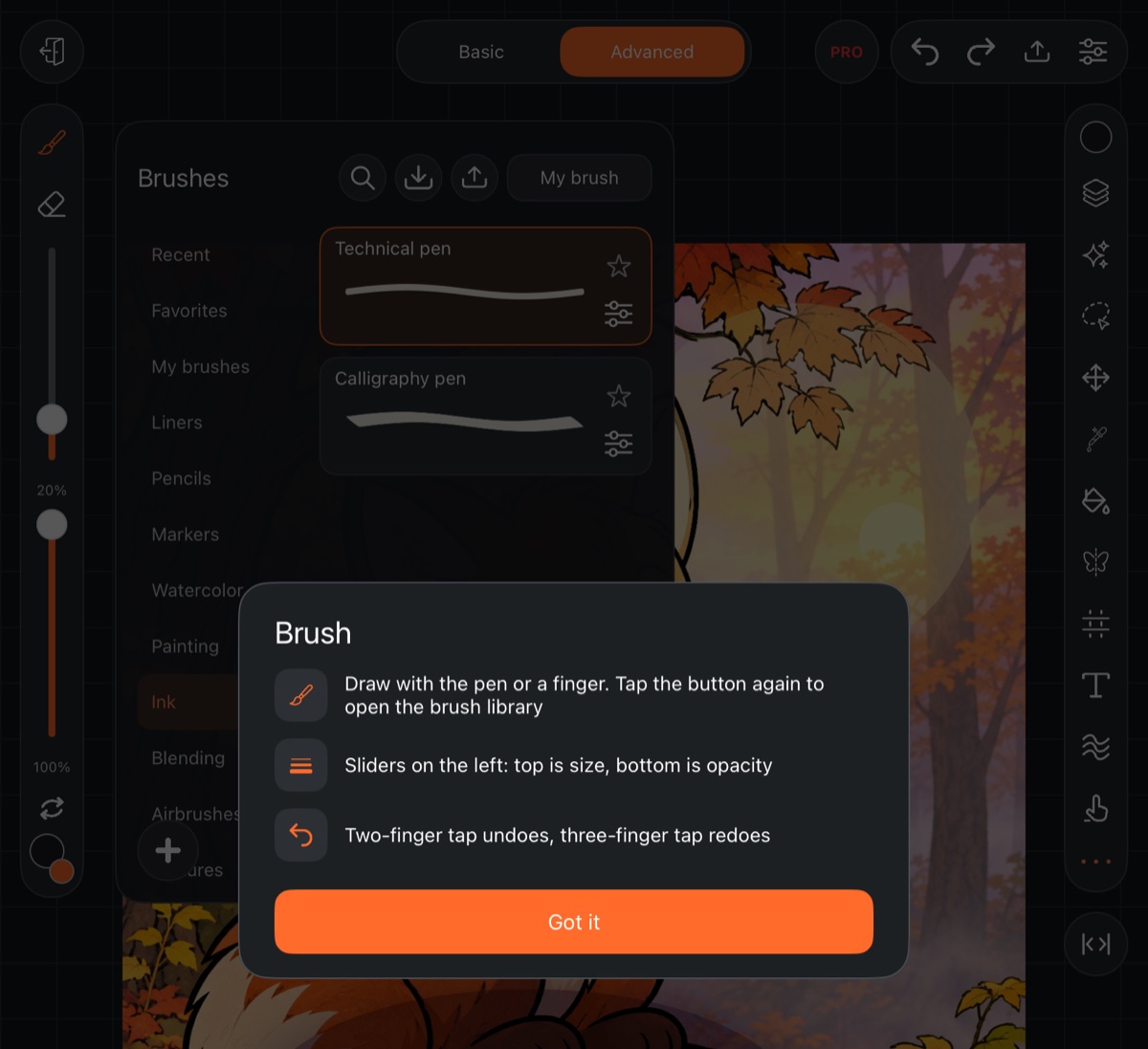
On a phone some steps read differently: for example, undo and redo are the arrows at the top, and finger gestures are turned on separately in Gestures.
Taking the tour again
- Open the Profile tab.
- In the Settings block, tap Show the tour again.
The welcome card and the gallery tour start over, and the tool cards will appear again the first time you open each tool. “Test project” isn't created again if you still have it.