
The gallery is Cloudfarb's first screen. It holds all your artworks and folders, and it's where you create new canvases and import files.
What's on the screen
At the top you'll see the Cloudfarb title and these buttons:
- New canvas and Import – orange, on the left;
- a capsule with icons: Select, Search, New folder, Settings;
- Trash – a separate circle on the right.
Below them are the Notebooks and Progress banners (you can hide them in settings), then the folder and artwork cards. A tablet shows three cards per row in portrait and four in landscape.
At the bottom is the tab bar: Cloudfarb (the gallery itself), Tools, Catalog, Blog, Profile.
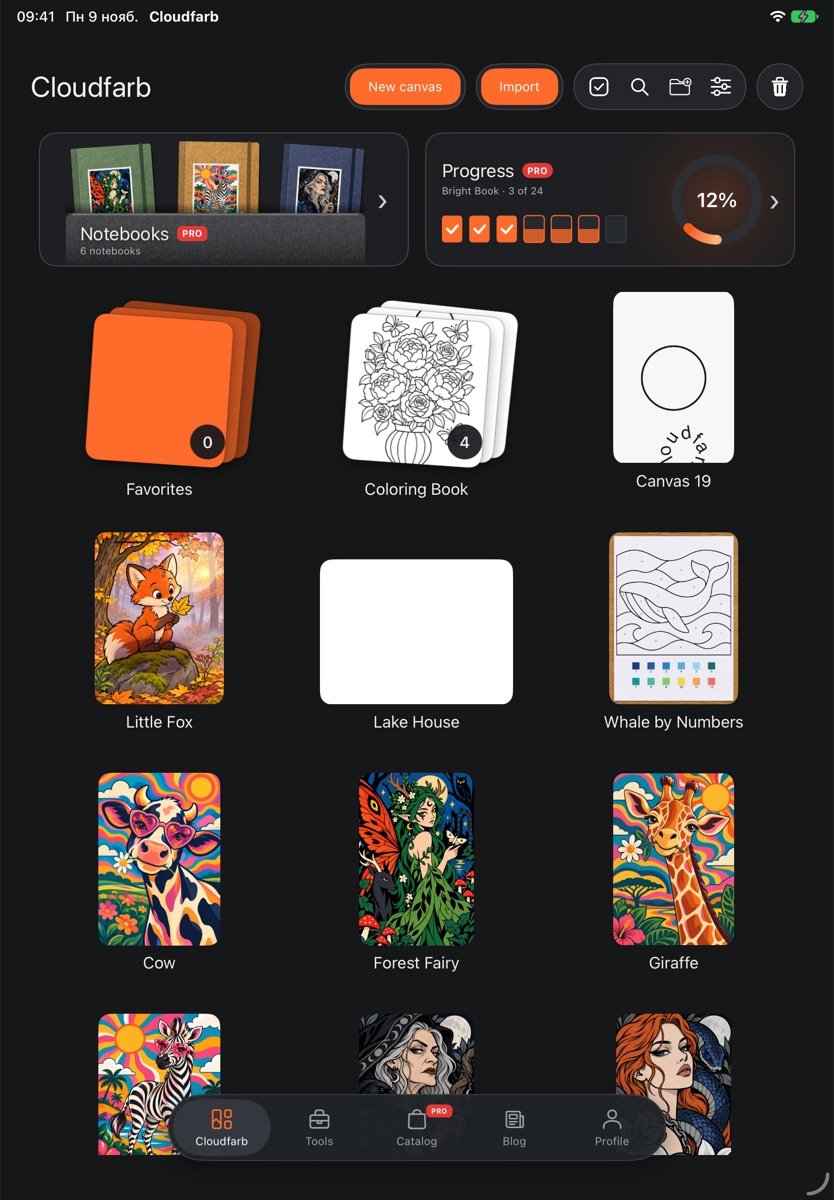
Phone: two cards per row, and New canvas and Import sit in a second row under the title.
Tap a card to open the artwork. There's no need to save – your work is saved automatically.
Folders
- Tap New folder (the folder icon with a plus).
- Type a name and tap Create.
Tap a folder to open it; the round arrow left of the title takes you back. Inside a folder you can create subfolders and new canvases. Import and Settings are only on the main gallery screen.
Card menu and order
Press and hold an artwork card – it lifts and round buttons appear next to it:
- the star – Add to favorites / Remove from favorites;
- the pencil – Rename;
- Move – to another folder or to “Main gallery”;
- History – cloud versions, only for works already in the cloud (see Cloud);
- Delete – moves the work to the trash.
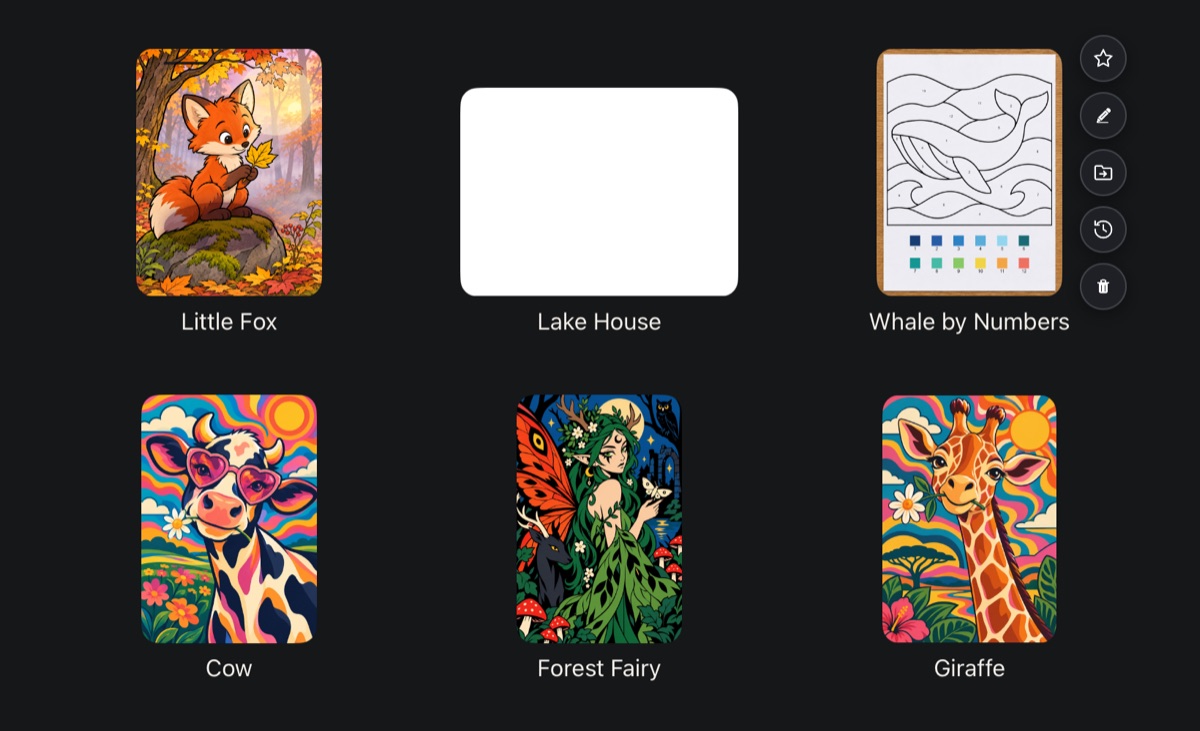
Keep holding and drag the card to rearrange works and folders in any order, mixed together. The order is remembered. Holding a folder gives Rename and Delete.
Favorites
The Favorites folder is always first and can't be moved. It shows every starred work, wherever it is. If you turn Favorites off in the gallery settings, the star disappears from the card menu too.
Search
Tap Search and start typing an artwork or folder name. Matching folders come first, then works, newest on top. Works in the trash don't show up in search.
Selecting several works
- Tap Select.
- Tap the cards you want – a check mark appears on each. All selects everything.
- Tap To folder to move them (you can also make a + New folder there), or Delete to send them to the trash.
- The arrow on the left (Done) leaves selection mode.
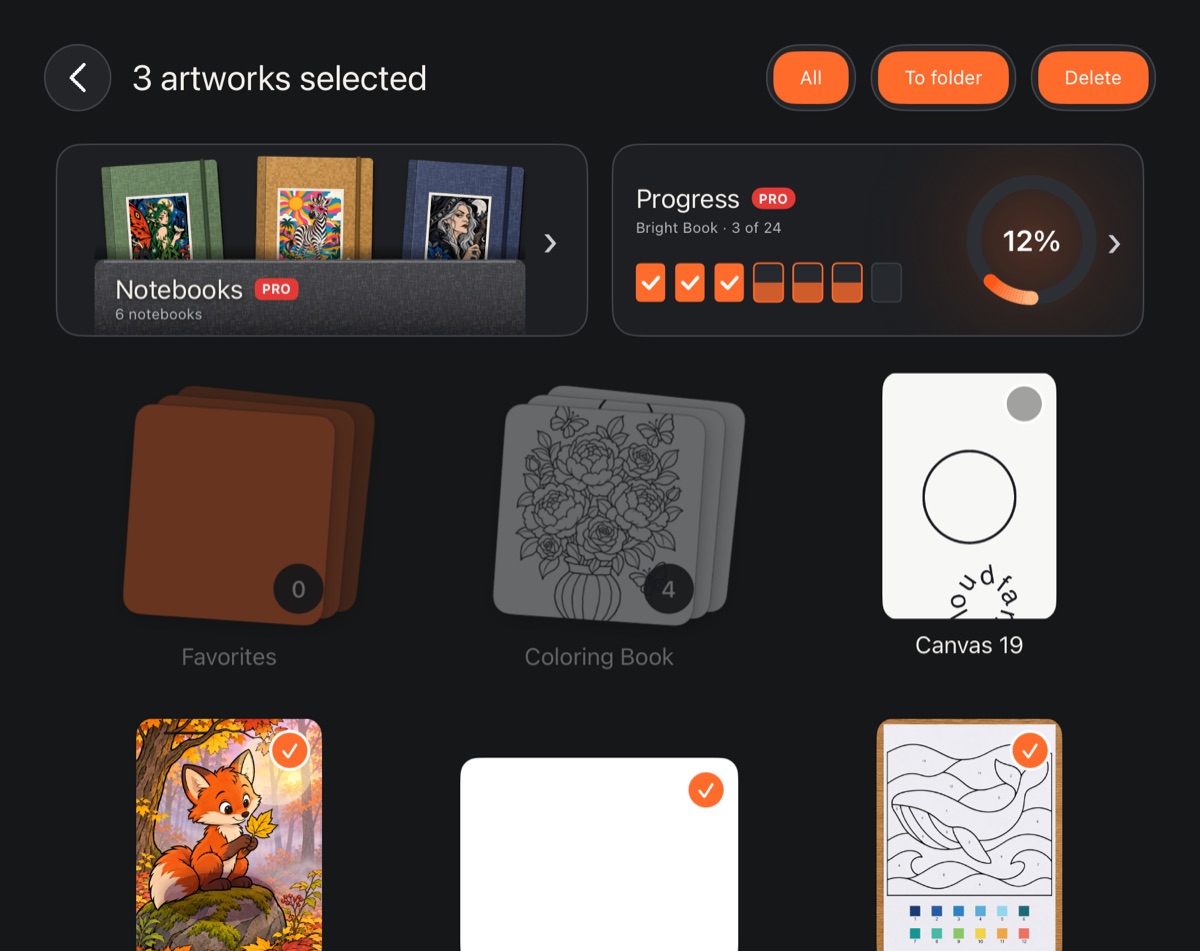
Only artworks can be selected: folders are dimmed in this mode. There's no Select button inside Favorites.
Trash
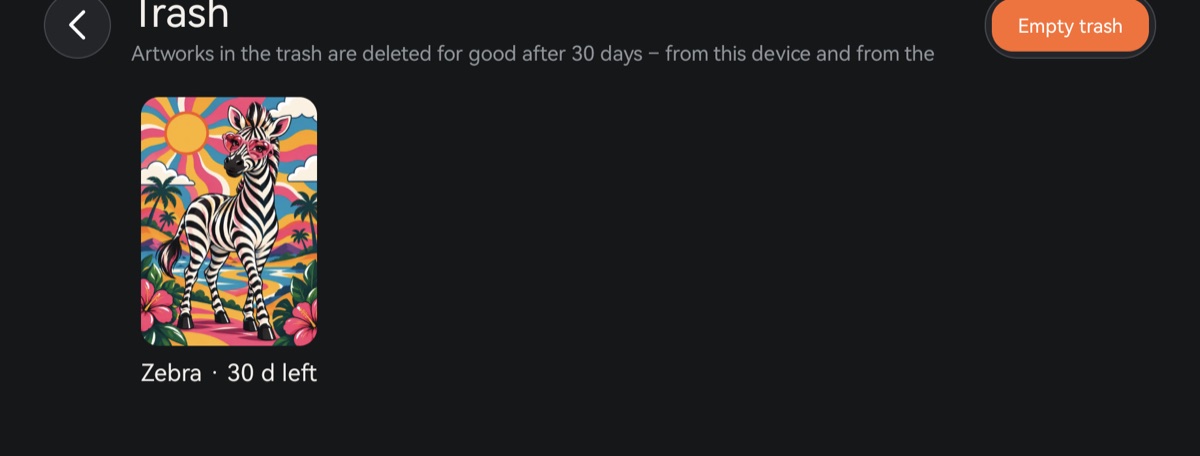
A deleted work doesn't vanish right away – it goes to the Trash and stays there for 30 days. Each card shows how many days are left.
- Tap a work in the trash and choose Restore from trash or Erase permanently.
- Empty trash at the top erases everything at once.
A permanently erased work can't be brought back.
If you delete a folder with works in it, the works from it and its subfolders go to the trash. An empty folder is simply removed.
Tabs
- Tools – Color by number, Progress, Notebooks.
- Catalog – coloring pages, palettes, brushes, textures and fonts. Anyone can browse; taking items needs PRO.
- Blog – app news, how-tos and tips.
- Profile – account, subscription, cloud and settings (see Account, PRO subscription).