
Layers are transparent sheets stacked on top of each other. What's drawn on an upper layer covers the ones below. Keeping line art, color and shading on separate layers lets you change one without touching the rest.
The Layers panel
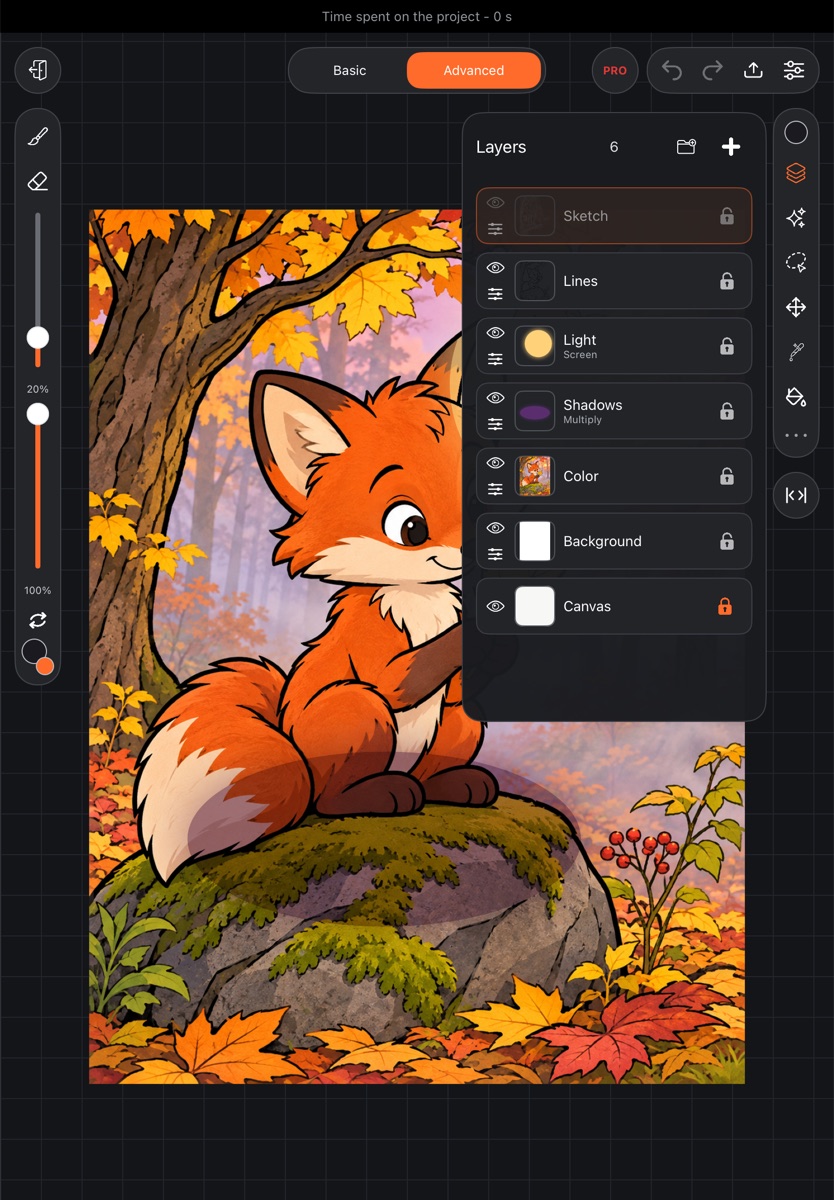
Tap Layers on the right toolbar. The panel header shows the title, the number of layers and two buttons on the right: New layer folder and New layer (the "+" icon).
Each layer row has:
- an eye – Hide layer / Show layer; a hidden layer is dimmed in the list;
- a menu icon under the eye – Layer menu;
- a thumbnail and the name; if the blend mode isn't normal, it's shown under the name;
- a lock on the right – Lock layer / Unlock layer.
The last row is Canvas – the paper under all layers. Its eye hides the paper, and tapping the row opens the canvas settings.
Adding and selecting a layer
- New layer ("+" in the header) adds an empty layer above the selected one. If you hit this device's layer limit, you'll see a message.
- Tap a row to select the layer – the active layer has an orange outline. The brush, fill and effects work on it.
- Tap the selected layer again – Blend mode and Opacity slide out below it.
Opacity
The Opacity slider, from 0 to 100%, makes the whole layer more transparent. The layer changes as you drag, and the change goes into history as a single step when you let go. For blend modes, see Blend modes.
Hiding and locking
- The eye hides the layer from the canvas. You can't paint on a hidden layer – the app will tell you.
- The lock blocks any change to the layer: painting, filling, moving, deleting. Remove the lock in the layer row to edit it again.
Reordering layers
Touch and hold a layer row – it lifts above the list. Drag it up or down and let go in the new spot. A locked layer can't be moved.
Duplicating and deleting
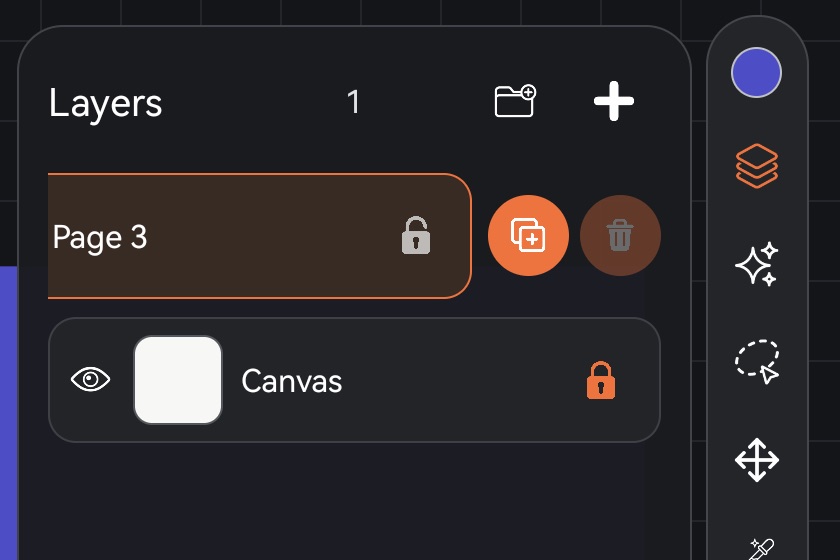
Swipe a layer row to the left – two buttons appear on the right:
- Duplicate layer – the copy appears next to it;
- Delete layer – unavailable if it's the only layer in the artwork.
Merging layers
- Merge down in the layer menu merges the layer with the one below. The layer below has to be a visible regular layer.
- Put two fingers on two rows and pinch them together – all layers from the upper row to the lower one merge into one.
- Mark several layers (see below) and tap Merge.
Text layers, groups and locked layers can't be merged until you prepare them: rasterize the text, remove the lock.
Marking several layers
Swipe a row to the right – the layer gets marked, and a check circle replaces the lock. Marked layers can be:
- moved together – touch and hold any of them;
- grouped or merged with the Group and Merge buttons above the list (when two or more are marked);
- transformed together.
Clear selection above the list unmarks them all. Tapping another layer unmarks them too.
The layer menu
The menu of a regular layer has:
- Rename;
- Clear – erases everything on the layer in one step;
- Copy and Paste – through the clipboard; pasting goes into this layer, on top of its drawing;
- Merge down;
- Move to group / Take out of group – see Layer groups;
- Make reference – the layer goes into the reference window;
- Repeat around – the layer's drawing is repeated around the center of the canvas, for ornaments;
- Clip to layer below, Alpha lock, Add layer mask – see Masks, clipping and alpha lock;
- Lines – brush color and Lines to SVG – only on a layer that has dark lines.
A text layer has a shorter menu: Edit text, Rasterize text and the actions that don't break the text.