
Cloudfarb has two ways to print: Print sheet for a quick print on your own printer, and For print shop to prepare a file a professional printer will accept.
Print sheet
- In an artwork, tap the Export button at the top right (between the undo arrows and settings).
- Choose Print sheet.
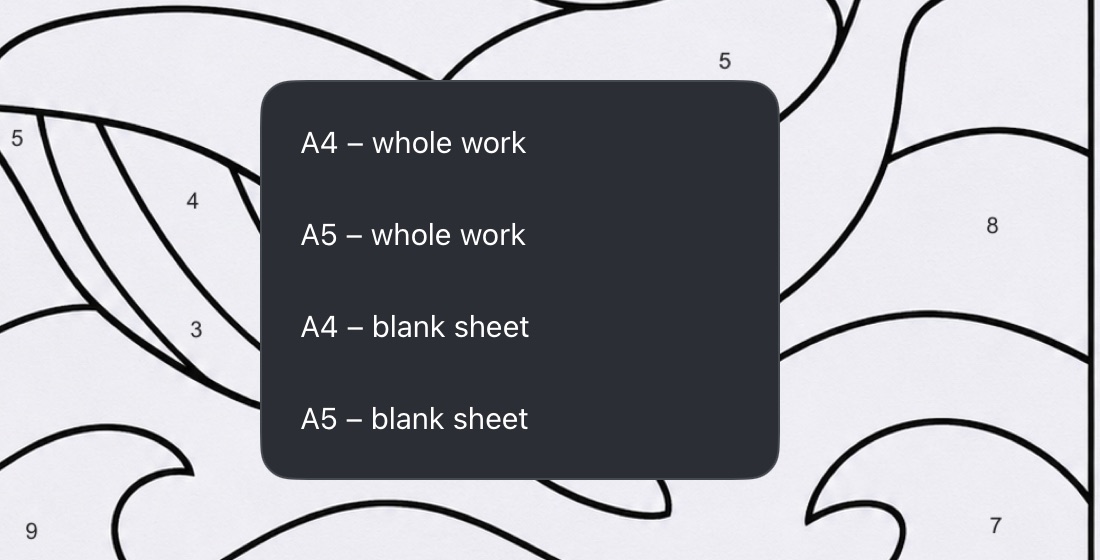
- Pick an option: - A4 – whole work or A5 – whole work – the whole artwork, as on screen; - A4 – blank sheet or A5 – blank sheet – only the bottom visible layer. Handy for coloring pages: the outlines print without your paint.
- The system print window opens. Choose a printer and print. You can also save the sheet as a PDF file from there.
The artwork is fitted to the page with 6 mm margins. If it is wider than it is tall, the page turns landscape.
If something goes wrong, you'll see “Could not prepare the sheet for printing”.
For print shop
Print shops use CMYK inks, and screens show color differently. The For print shop window converts the artwork to CMYK, shows which colors will print duller, and saves a file with trim, bleed and crop marks.
For print shop is free.
Open it
- In an artwork, tap Settings at the top right.
- On the Misc tab, choose For print shop.
Preview
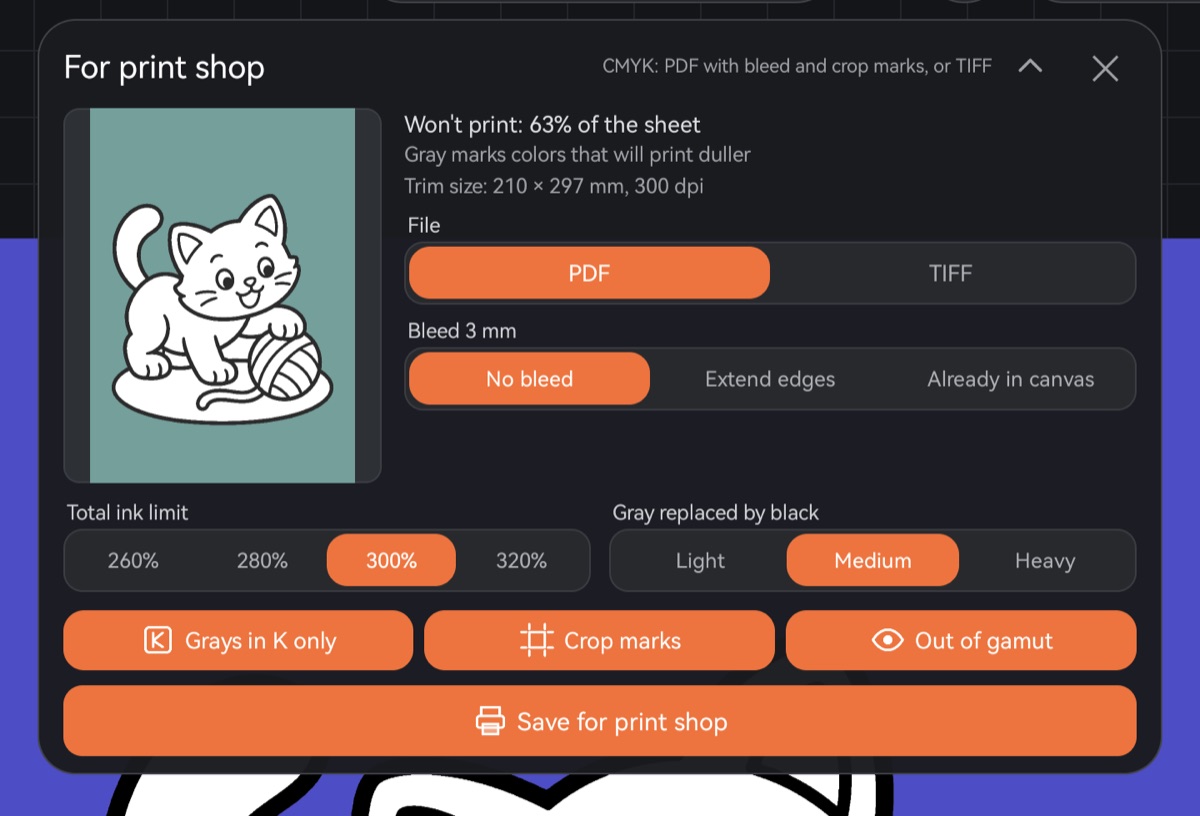
On the left is a thumbnail showing how the drawing will land on paper. Gray marks colors that will print duller; to the right of the thumbnail you'll see how much of the sheet that is, for example “Won't print: 3% of the sheet”, or “All colors are printable”. Tap the thumbnail for a full-screen preview.
Below is a line like “Trim size: … × … mm, … dpi”. It comes from the canvas size and its DPI. If the size is wrong, change the canvas size or DPI under Settings, on the Canvas tab. See New canvas.
Settings
- File – PDF or TIFF. PDF includes trim size, bleed and crop marks. TIFF is a CMYK image at the document's resolution.
- Bleed 3 mm – extra image past the cut line so no white edge is left:
- No bleed;
- Extend edges – the app adds 3 mm around the edges by mirroring the edge of the drawing;
- Already in canvas – you've drawn with the extra margin already: the trim size is the canvas minus 3 mm on each side.
- Total ink limit – 260, 280, 300 or 320%. The default is 300%. If your print shop gave you a limit, use theirs.
- Gray replaced by black – Light, Medium (default) or Heavy.
- Grays in K only – gray and black print with black ink only, so coloring-page lines don't double up even if the inks are slightly misaligned. On by default.
- Crop marks – PDF only.
- Out of gamut – whether to show the gray marking on the preview.
Save
Tap Save for print shop. You'll see “Preparing file…” while it works. On Android the file goes to Download/Cloudfarb and the message shows the path. On iPad and iPhone the system share sheet opens.
For saving as images, PSD or a coloring book, see Export.