
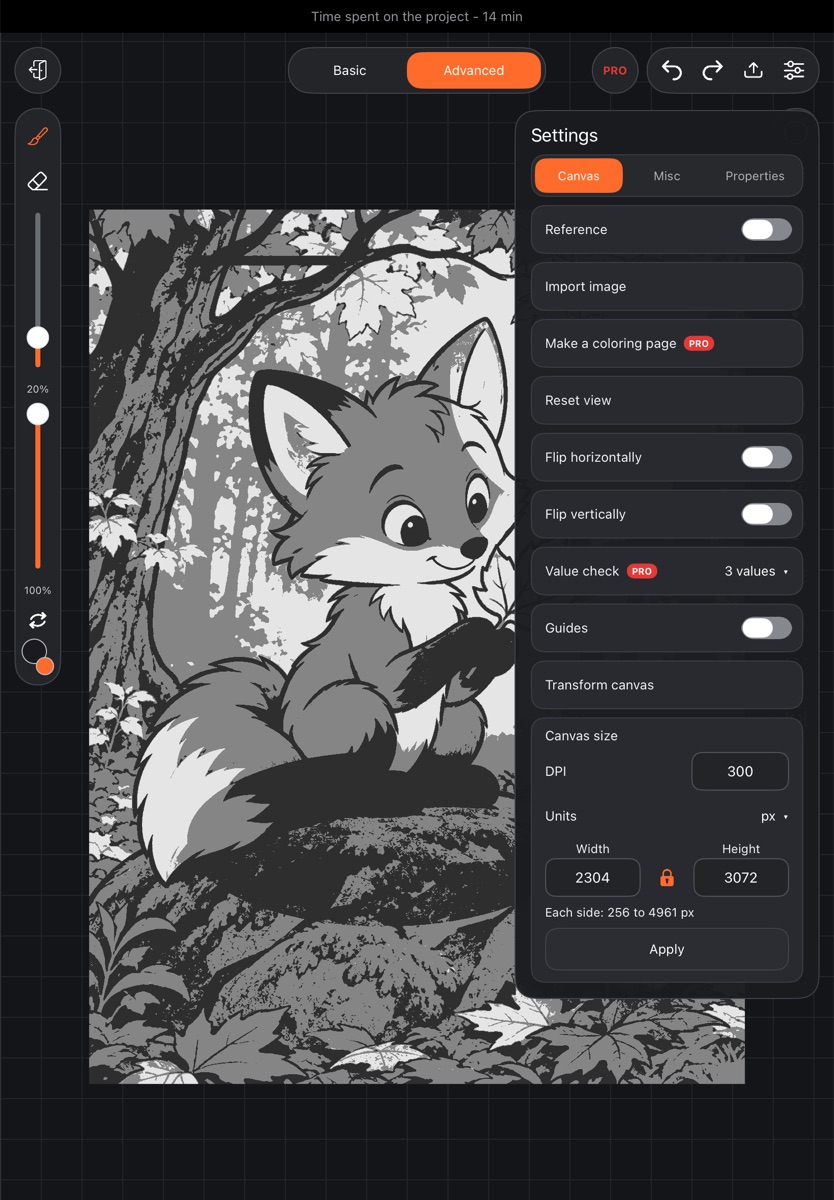
Color can fool the eye: bright colors of the same lightness blend together from a distance. Value check shows the canvas in grayscale or in just three values, so you can see at once where light and dark need more contrast.
Turn it on
- In an artwork, tap Settings at the top right.
- On the Canvas tab, find Value check (marked PRO).
- Choose a view: - Grayscale – the canvas in shades of gray; - 3 values – the canvas split into dark, middle and light; - Off – back to color.
Good to know
- Only the on-screen view changes. The drawing itself stays in color: exports, the gallery thumbnail and the saved artwork are all in color.
- You can keep drawing with the check on: the brush lays down the color chosen in the palette – it just shows as gray on screen.
- Turning the check off works without a subscription.
Other view-only options – flipping the canvas horizontally or vertically – are also under Settings → Canvas.