
You move the canvas with two fingers and undo or redo with quick taps. The gestures are the same on Android and on iPad/iPhone.
Move, zoom and rotate
- Put two fingers on the canvas.
- Move them together – the canvas follows.
- Spread or pinch your fingers to zoom in or out.
- Twist your fingers to rotate the canvas.
The spot that was between your fingers when the gesture started stays between them. Two-finger navigation always works, even when finger drawing is off.
While you move the canvas, a small box with Rotation and Zoom values appears at the top center. It fades three seconds after you stop.
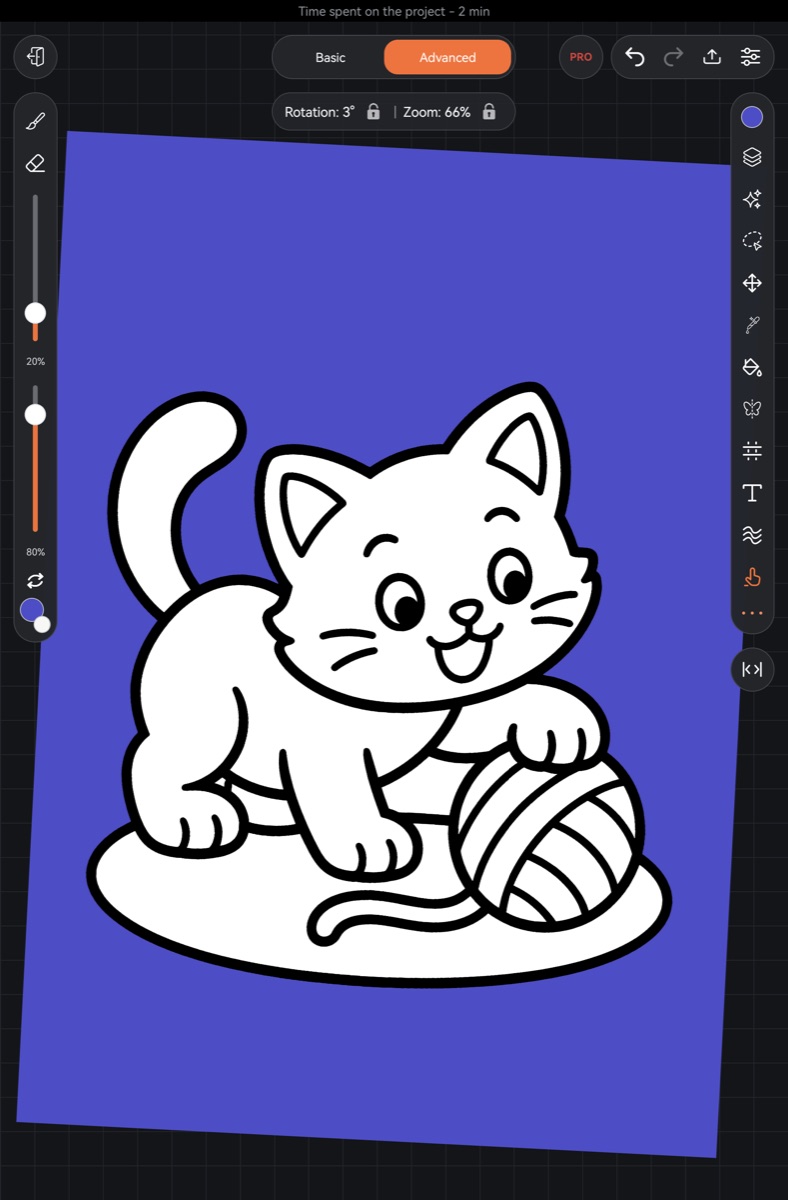
Rotation and zoom locks
Each value in the box has a lock next to it.
- Rotation lock – the gesture no longer rotates the canvas.
- Zoom lock – the gesture no longer changes the zoom.
Moving with two fingers still works. Locks are saved per artwork. To reach them, move the canvas with two fingers so the box shows up.
Undo and redo with a tap
- Two-finger tap – undo.
- Three-finger tap – redo.
Keep the tap short: the fingers land and lift almost together and don't slide. If they slide, that's canvas navigation, not undo. Right after a pen stroke the tap is judged more strictly, so a pinky brushing the screen won't undo your work.
You can also use the Undo and Redo arrows at the top of the screen.
Turning tap gestures off
- Tap Settings (the gear at the top right).
- Open the Misc tab and tap Gestures.
- Turn off Two fingers – undo or Three fingers – redo.
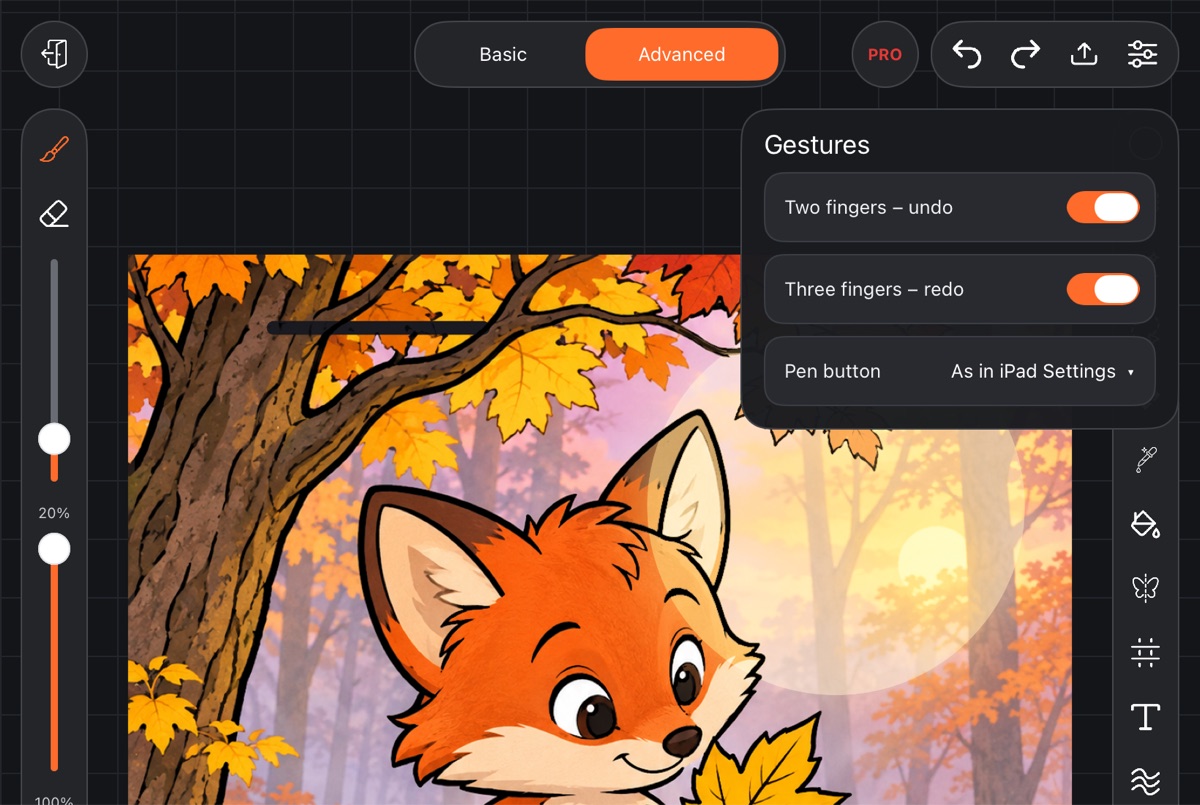
On a phone both gestures are off by default, because a two-finger tap is easy to mix up with zooming. Use the arrows at the top, or turn the gestures on in the same Gestures window. On tablets they're on by default.
Hold a finger – eyedropper
With Brush or Eraser selected, rest a finger on the canvas without moving for half a second and an eyedropper circle appears above it. Lift your finger and the color under the crosshair becomes your brush color. See Eyedropper.
Hold the pen – shape
Hold the pen still for half a second at the end of a stroke and the line turns into a clean shape. See Shapes.
Put the canvas back
If the canvas has drifted or turned, tap Settings → Canvas tab → Reset view. The canvas fits the screen again, unrotated.
Navigator
For large artworks, turn on Settings → Misc → Navigator. A thumbnail of the whole artwork appears in a corner, with a frame showing what's on screen. Tap or drag on the thumbnail and that spot moves to the center of the screen; zoom and rotation stay as they are. Drag the navigator by the strip at its top to move it.
Mirrored view
Settings → Canvas → Flip horizontally or Flip vertically shows the canvas mirrored, so you can spot drawing mistakes with fresh eyes. The artwork itself doesn't change.