
A group is a folder for layers. It keeps things tidy when you have lots of layers – say, all the character's layers in one group and all the background layers in another. You can hide, lock, move or copy a group as a whole.
Creating a group
There are three ways.
- An empty group. Tap New layer folder in the header of the Layers panel – an empty group appears. Then move layers into it.
- From several layers. Swipe the rows of the layers you want to the right – each gets a check circle. A Group button appears above the list – tap it, and the marked layers go into a new group.
- From one layer. Choose Move to group in the layer menu. If there are no groups yet, a new one is created; if there's one group, the layer goes into it; if there are several, the app asks "Which group?".
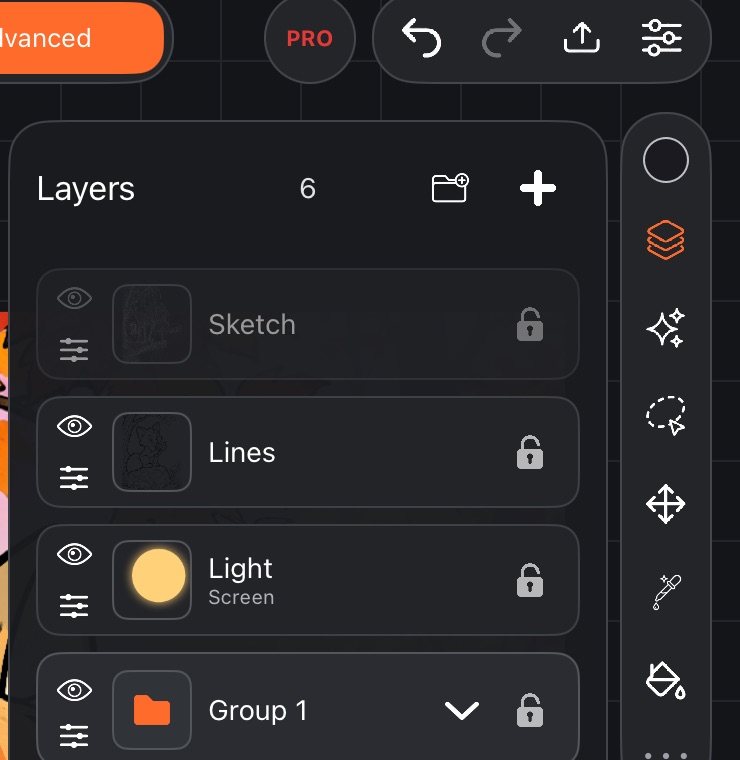
The group row
A group row works like a layer row:
- an eye – Hide group / Show group;
- a menu icon under the eye – Group menu;
- a folder icon with the number of layers inside;
- an arrow – Expand group / Collapse group;
- a lock.
While a group is collapsed, its layers aren't shown in the list. Expand it with the arrow – its layers appear indented below it, and the other rows are dimmed. Only one group can be expanded at a time.
Moving a layer in and out of a group
- Touch and hold a layer row and drag it onto the group row or between the layers of an expanded group – the layer goes inside.
- Drag a layer out of an expanded group – it leaves the group.
- Or choose Take out of group in the layer menu.
A group can't go inside another group – groups live only at the top level.
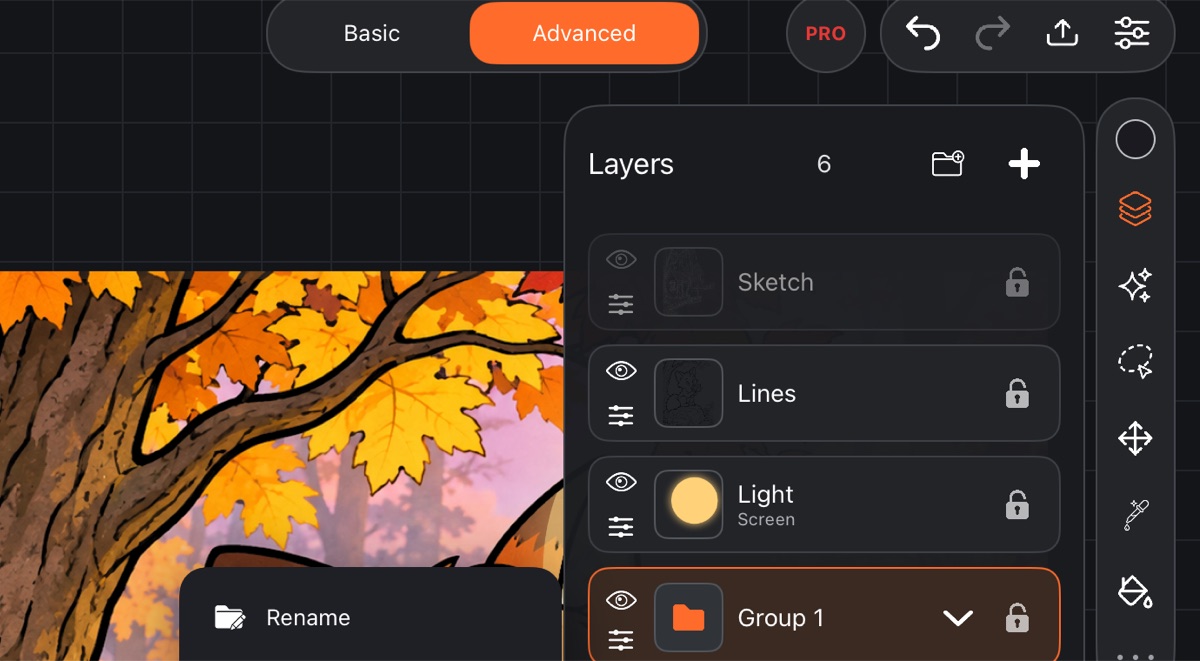
The group menu
- Rename;
- Ungroup – the group disappears, its layers stay where they are;
- Merge layers – all layers of the group are merged into one;
- Copy – a copy of the group with all its layers;
- Delete – deletes the group together with its layers.
Good to know
- A group has no blend mode or opacity – set them on each layer. See Blend modes.
- You can't paint or fill on a group itself: select a layer inside it. If the group is selected, the app will let you know.
- Layers marked by swiping can also be merged into one with Merge – see Layer basics.
- Anything you do to a group can be undone.