
Cloudfarb lets you draw short frame-by-frame animations. Each frame is a layer (or a group of layers) in the regular layers panel, ordered from bottom to top. Save the result as a GIF or MP4.
Turn it on
- Tap the round PRO button at the top of the screen and choose Animation.
- Turn on the switch in the panel header – it will say “On”.
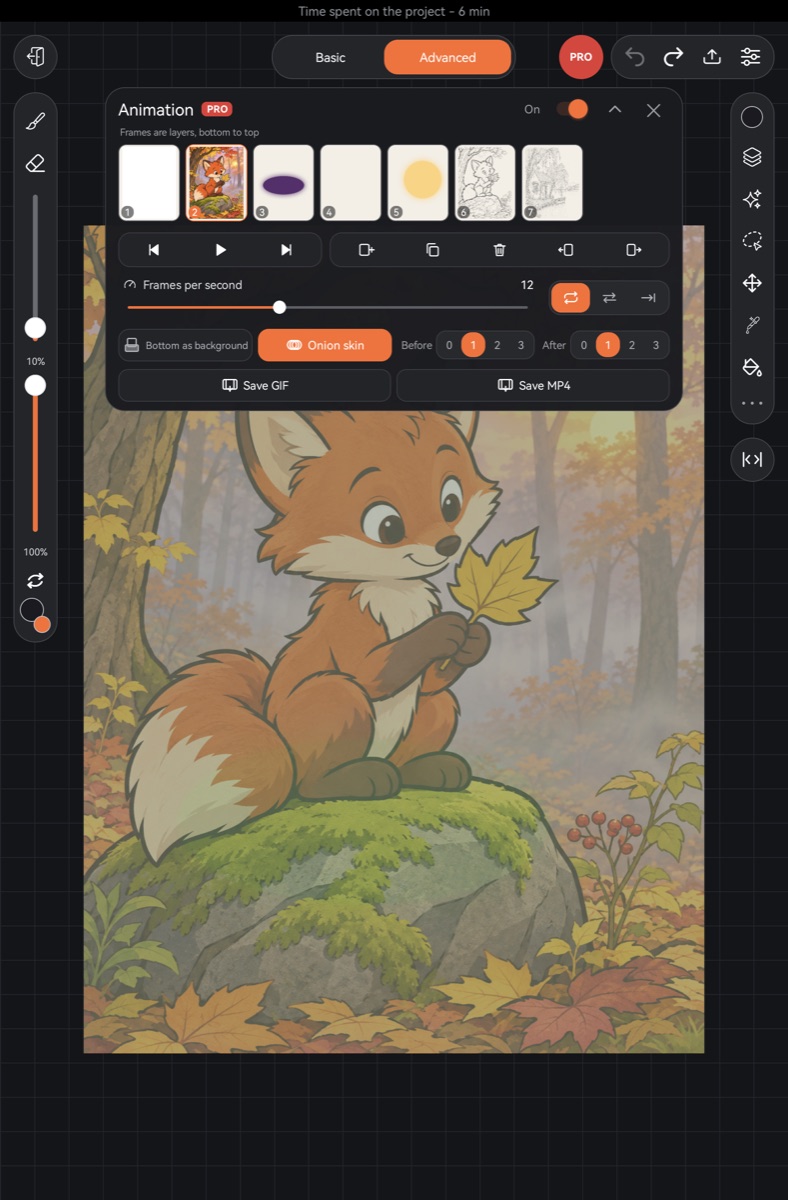
While animation is on, the canvas shows only the current frame (plus the background, if enabled). The current frame is the one containing the selected layer: select a layer from another frame in the layers panel and the canvas shows that frame. The brush always paints into the visible frame.
Turn the switch off and the canvas shows all layers as usual again. Animation settings are saved with the artwork.
The frame strip
Below the header is a strip of numbered thumbnails. Tap a thumbnail to go to that frame; the current one is outlined in orange.
Below it are two rows of icon buttons:
- Previous frame, Play (pause while playing), Next frame;
- + Frame – a new empty frame after the last one;
- Copy frame – a copy of the current frame right after it, handy when the next frame is almost the same;
- Delete frame – asks first; you can't delete the only frame;
- ← Earlier and Later → – move the current frame along the strip.
Frames are ordinary layers, so you can also rename and reorder them in the layers panel. A frame made of several layers is a group.
Speed and looping
- The Frames per second slider goes from 1 to 30; the default is 12.
- Next to it are three loop buttons: Loop, Ping-pong, Once.
Background and onion skin
- Bottom as background – the bottom layer becomes the background: it shows under every frame and doesn't count as a frame itself.
- Onion skin – neighbouring frames show faintly so you can draw the motion. Previous frames are tinted red, next frames green. Choose how many to show with Before and After, from 0 to 3. Onion skin is hidden during playback.
Saving
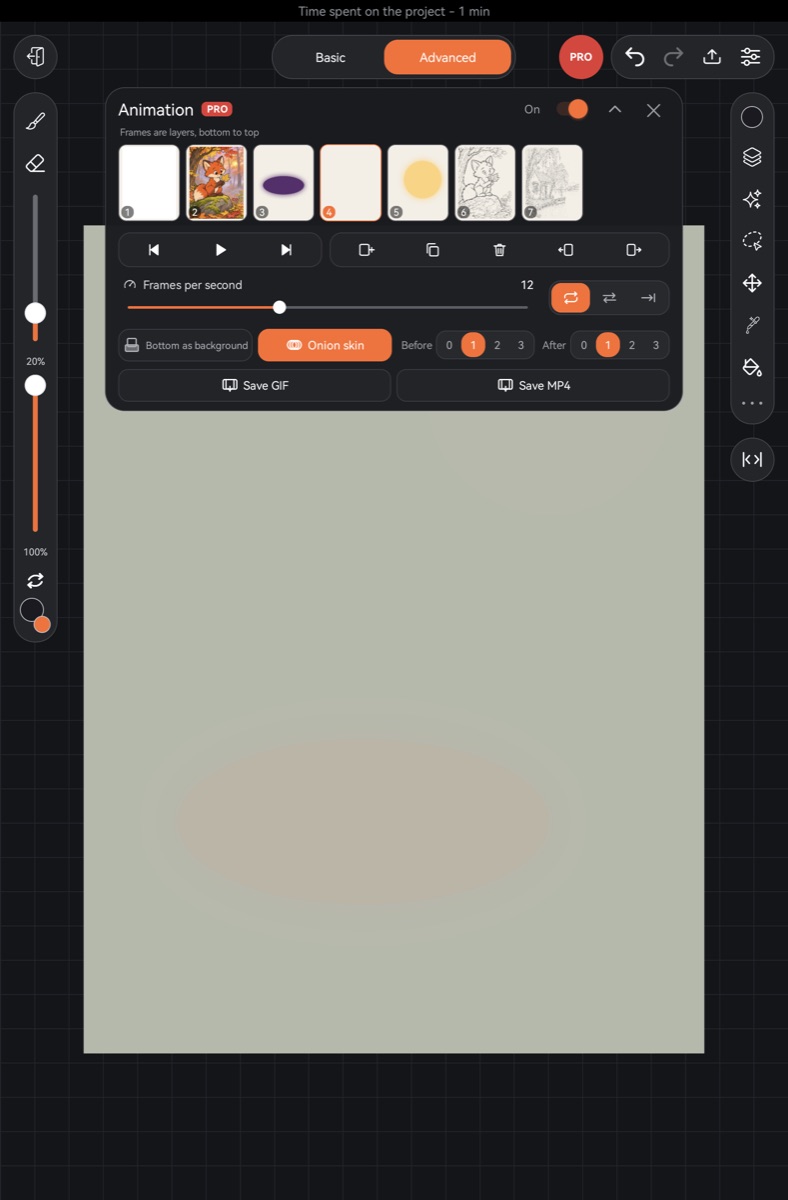
Buttons at the bottom of the panel:
- Save GIF – long side up to 800 px.
- Save MP4 – long side up to 1280 px, at the speed you set. With Ping-pong the video plays the frames forward and back. A very short animation is repeated so the video lasts at least three seconds.
On Android, GIFs go to Pictures/Cloudfarb and MP4s to Movies/Cloudfarb; the message shows the exact path. On iPad and iPhone the system share sheet opens after saving.