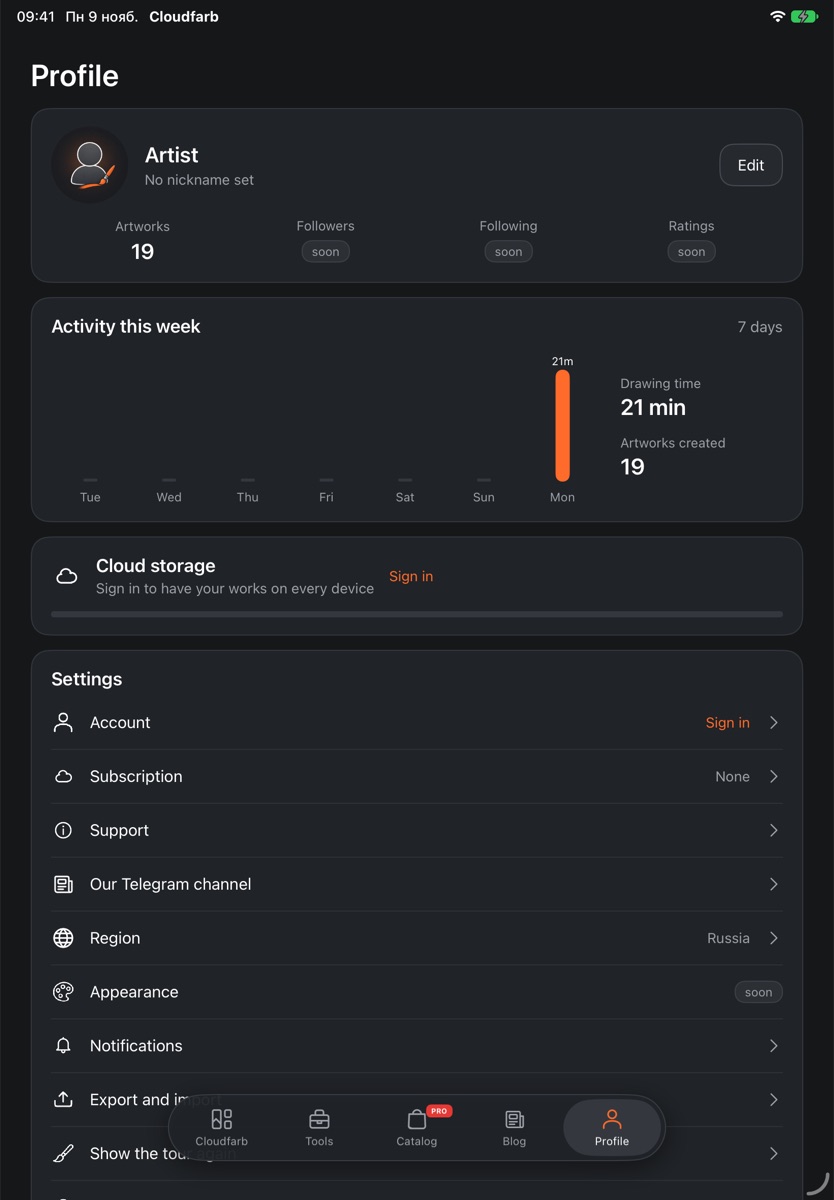
Settings live in three places: general ones in the gallery, canvas and workspace ones in an open artwork, and account, notifications and the rest in your profile.
Gallery settings
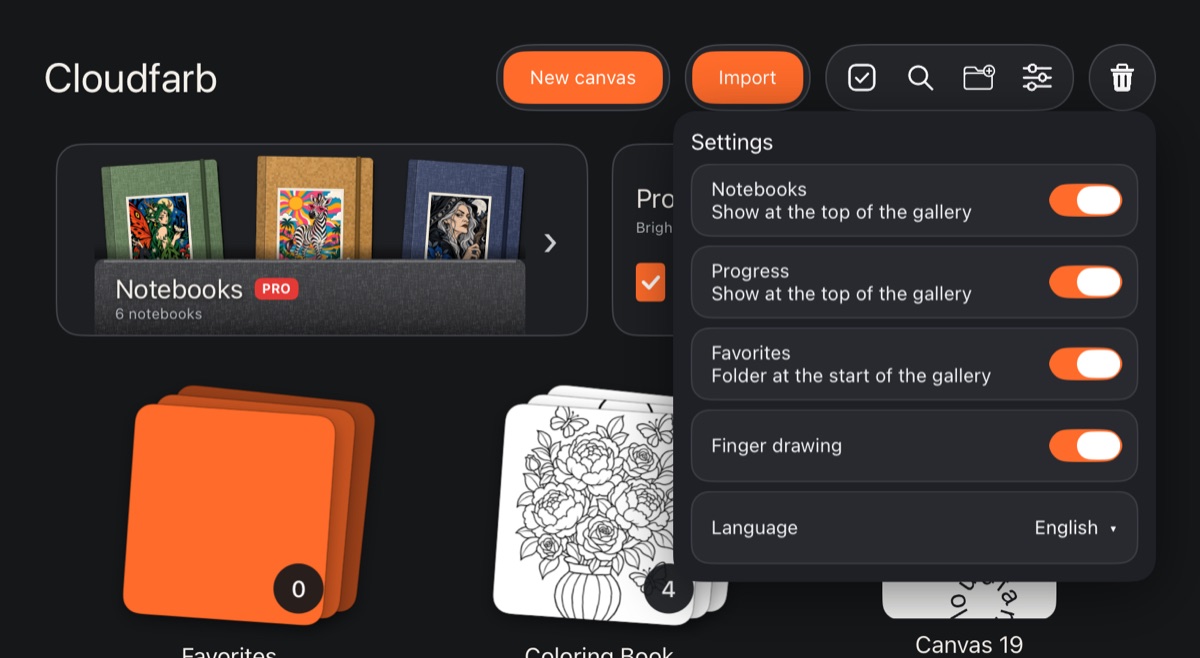
On the main gallery screen, tap Settings (the gear in the capsule at the top).
- Notebooks and Progress – “Show at the top of the gallery”: the banners above your artwork cards. Turn them off if you don't need them.
- Favorites – “Folder at the start of the gallery”. Turn it off and the Favorites folder disappears, along with the star in the card menu.
- Finger drawing – whether a finger draws or only the pen does. It starts on for phones and off for tablets. The same switch is in the canvas settings.
- Language – Русский or English. The interface switches to the chosen language right away.
Settings in an open artwork
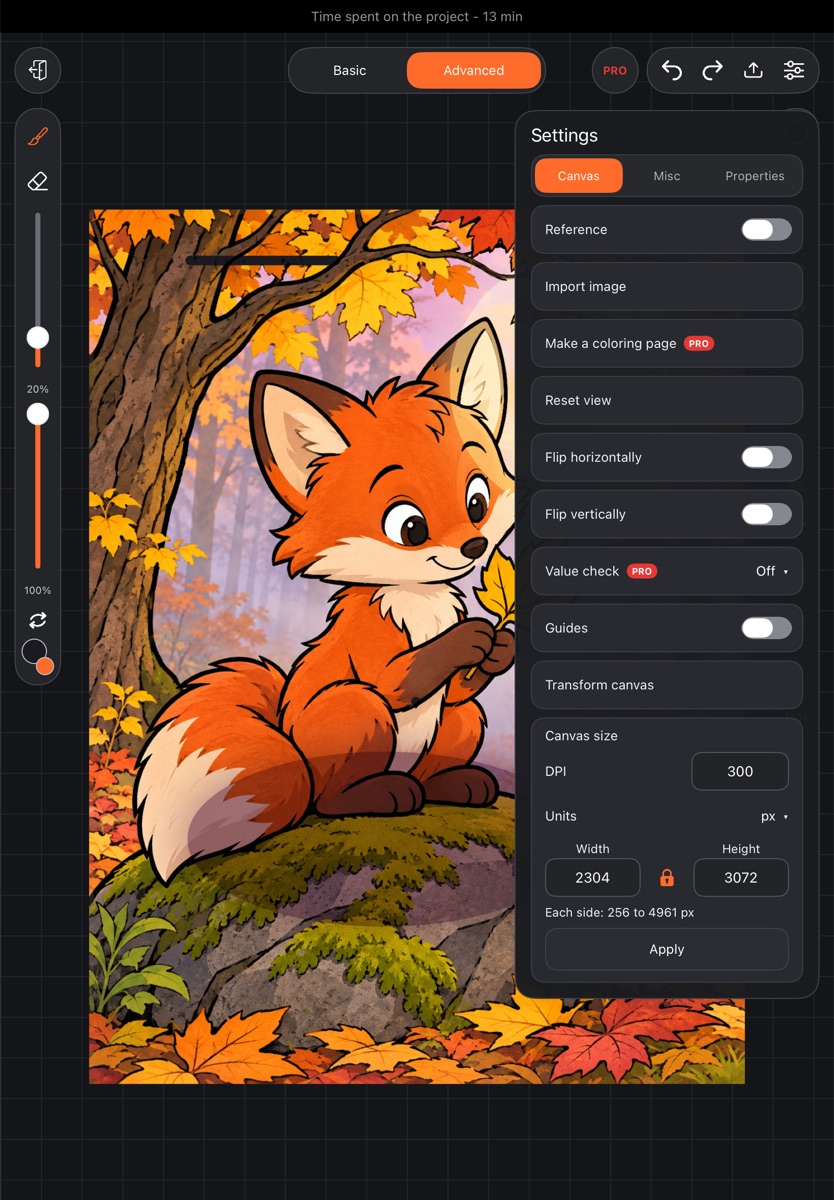
In an artwork, tap Settings – the gear at the top, right of Export. The window has three tabs: Canvas, Misc and Properties.
Canvas
- Reference – a window with a reference picture over the canvas (see Reference).
- Flip horizontally, Flip vertically – the canvas is shown mirrored; the artwork itself doesn't change. Handy for checking proportions.
- Value check – Off, Grayscale or 3 values: the canvas is shown in gray or in three tones so you can see where contrast is lacking. The artwork stays in color.
- Guides – a grid over the canvas (see Guides and symmetry).
- Import image – a picture as a new layer (see Import).
- Make a coloring page – a coloring page made from your artwork.
- Reset view – return the canvas to its starting position and zoom.
- Transform canvas and Canvas size – change the artwork's size (see New canvas).
Misc
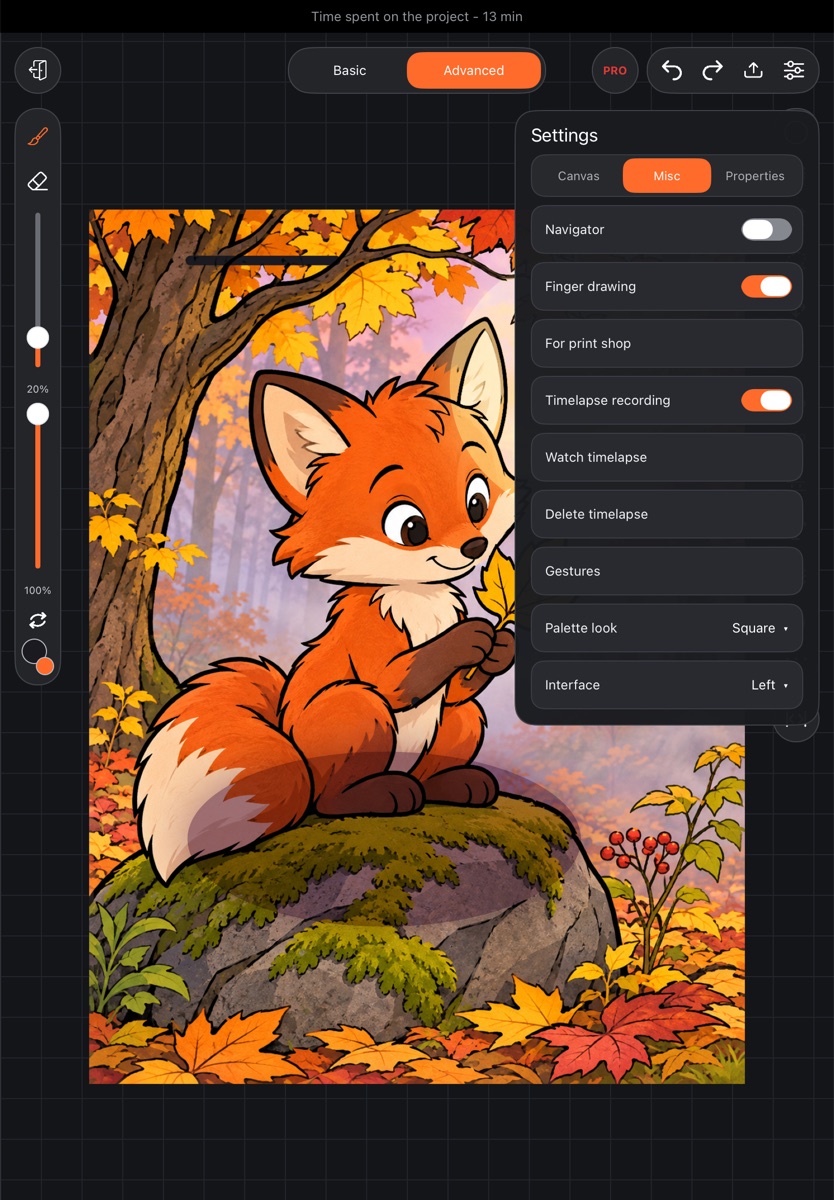
- For print shop – preparing the artwork for professional printing.
- Timelapse recording, Watch timelapse, Delete timelapse – see Timelapse.
- Gestures:
- Two fingers – undo and Three fingers – redo – finger taps to undo and redo;
- Pen button – what the button on your pen does: Brush ↔ eraser, Eyedropper, Undo or Nothing. On iPad there's also As in iPad Settings. More in Gestures.
- Navigator – a small window showing the whole artwork with a frame around what's on screen. Tap or drag in it to move the view; drag the strip at the top to move the window itself.
- Finger drawing – the same as in the gallery settings.
- Palette look – palette colors as Square or Circle.
- Interface – Left or Right: which side the sliders and tool strip sit on. Left-handed artists usually prefer Right.
Phone: finger gestures for undo and redo start off on a phone – undo and redo are the arrows at the top. You can turn the gestures on in Gestures.
Properties
Facts about the artwork: canvas size, color profile, number of layers and strokes, when it was started and last edited, how much space it takes, and its timelapse (stored on this device only).
Settings in your profile
On the Profile tab, the Settings block has:
- Account – sign in with email, sign out, delete (see Account and profile).
- Subscription – PRO, the trial and managing your subscription (see PRO subscription).
- Support – your requests and the replies.
- Our Telegram channel – shown if there's a channel in the app's language.
- Region – where your account, cloud and subscription are stored.
- Notifications – what to send to this device: Support replies, Trial ending, News and announcements, Drawing reminder and the reminder time. Required update messages always arrive.
- Export and import – a backup of your whole library in one file (see Exporting an artwork).
- Show the tour again – the welcome card and tool tips from the start (see First launch).
- About – the Cloudfarb version, Privacy policy, Terms of use and Website.
Next to the Settings block is the Cloud storage card (see Cloud).