
Cloudfarb tells a pen from a finger. The pen always draws; a finger draws only if you turn that on. A palm resting on the screen while you draw leaves no marks.
Finger drawing
- Tap Settings (the gear at the top right).
- Open the Misc tab.
- Turn on Finger drawing.
The same switch is in the gallery settings, so you can turn it on before your first artwork.
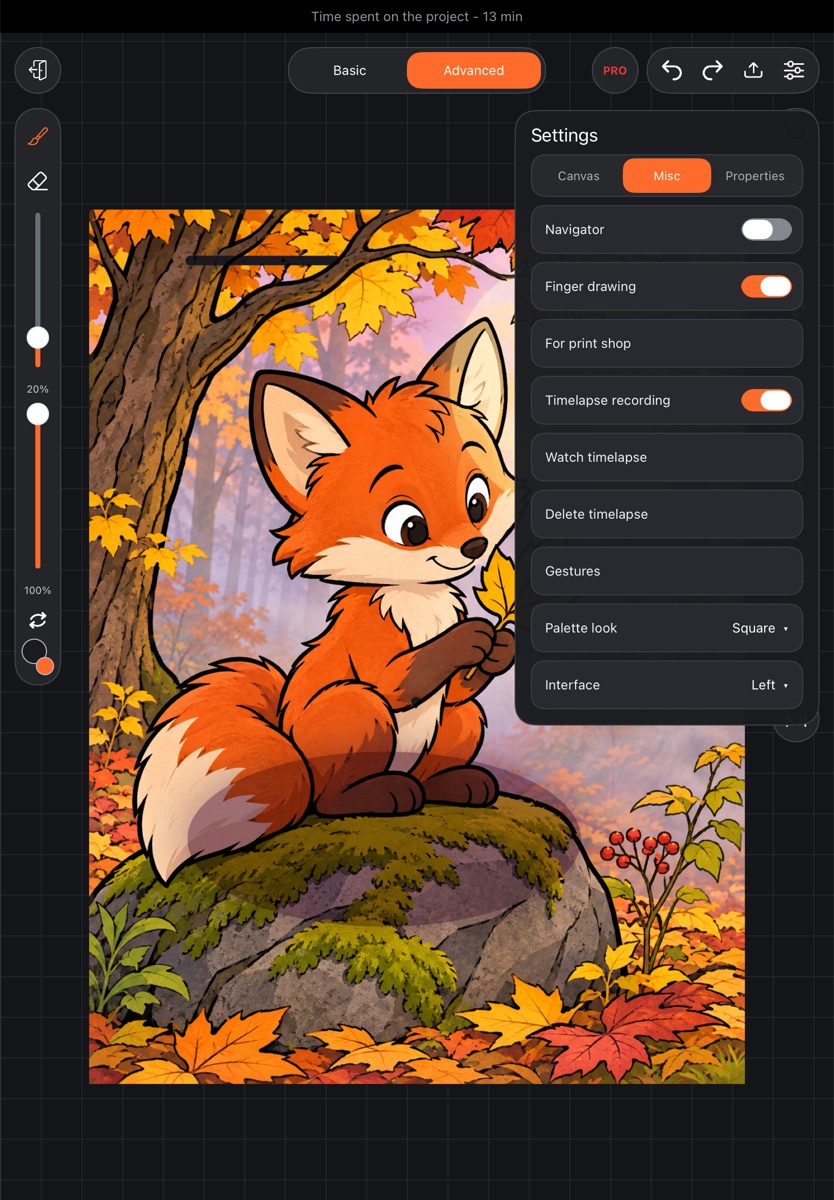
By default:
- on tablets finger drawing is off – a finger touches the canvas by accident more often than it draws;
- on phones it's on.
With finger drawing off, a single finger doesn't paint with the brush, eraser, smudge or other drawing tools. Everything else works as usual:
- two fingers move, zoom and rotate the canvas – see Canvas gestures;
- a finger can still fill, select, place text and pick colors with the eyedropper;
- holding a finger still for half a second with the brush or eraser opens the eyedropper – see Eyedropper.
Palm rejection
There's nothing to turn on. While the pen touches the screen or hovers over it (and for 0.4 seconds after), every finger on the canvas counts as palm and stays silent until lifted. So you can rest your hand or fingers on the screen while drawing.
If you put two fingers down almost together right after a stroke, that counts as a gesture – you can move the canvas or undo the stroke with a tap straight away.
Pen button on Android
If your pen has a button (or the tablet passes a double tap on the pen to apps), you can choose what it does.
- Tap Settings → Misc tab → Gestures.
- Tap the Pen button row and pick: - Brush ↔ eraser – switches between brush and eraser (the default). From any other tool it takes you back to the brush. - Eyedropper – turns on the eyedropper. - Undo – undoes the last action. - Nothing – the button does nothing.
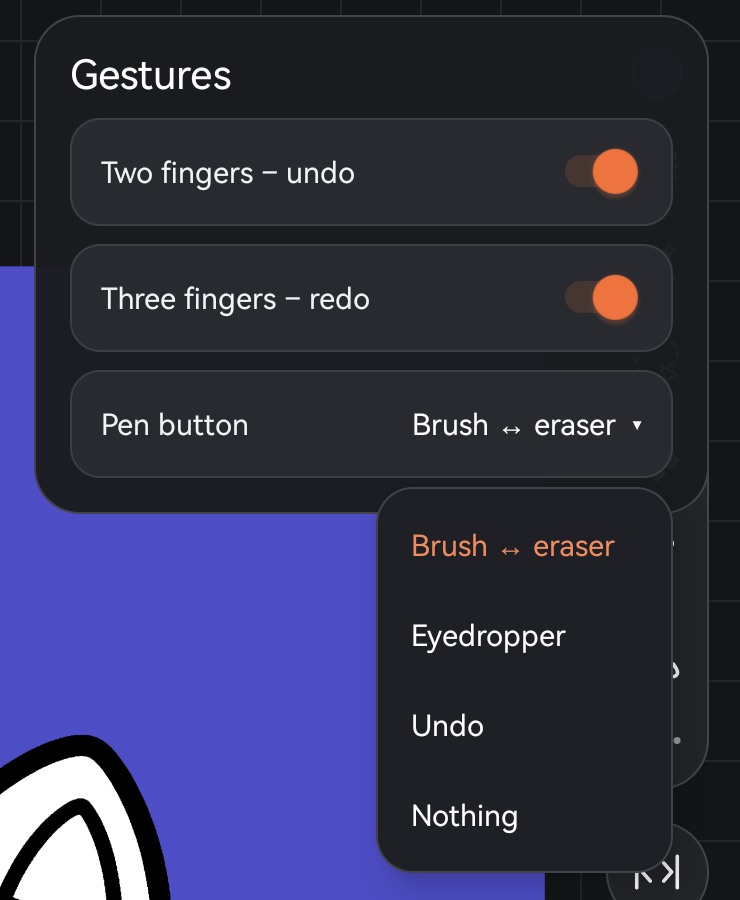
A press only counts when the pen isn't drawing: holding the button during a stroke doesn't trigger anything. Some tablets keep the pen button or gesture for themselves, and then it never reaches the app.
Double tap and squeeze on iPad
On iPad the same Gestures window controls Apple Pencil double tap and squeeze. The Pen button row has one more option – As in iPad Settings (the default): the app does what's chosen for the pen in the iPad's own settings – switches brush and eraser, or opens the palette or the brush panel. You can also pick your own action: Brush ↔ eraser, Eyedropper, Undo or Nothing.
Squeeze works on iPadOS 17.5 or later, with pens that support it.