
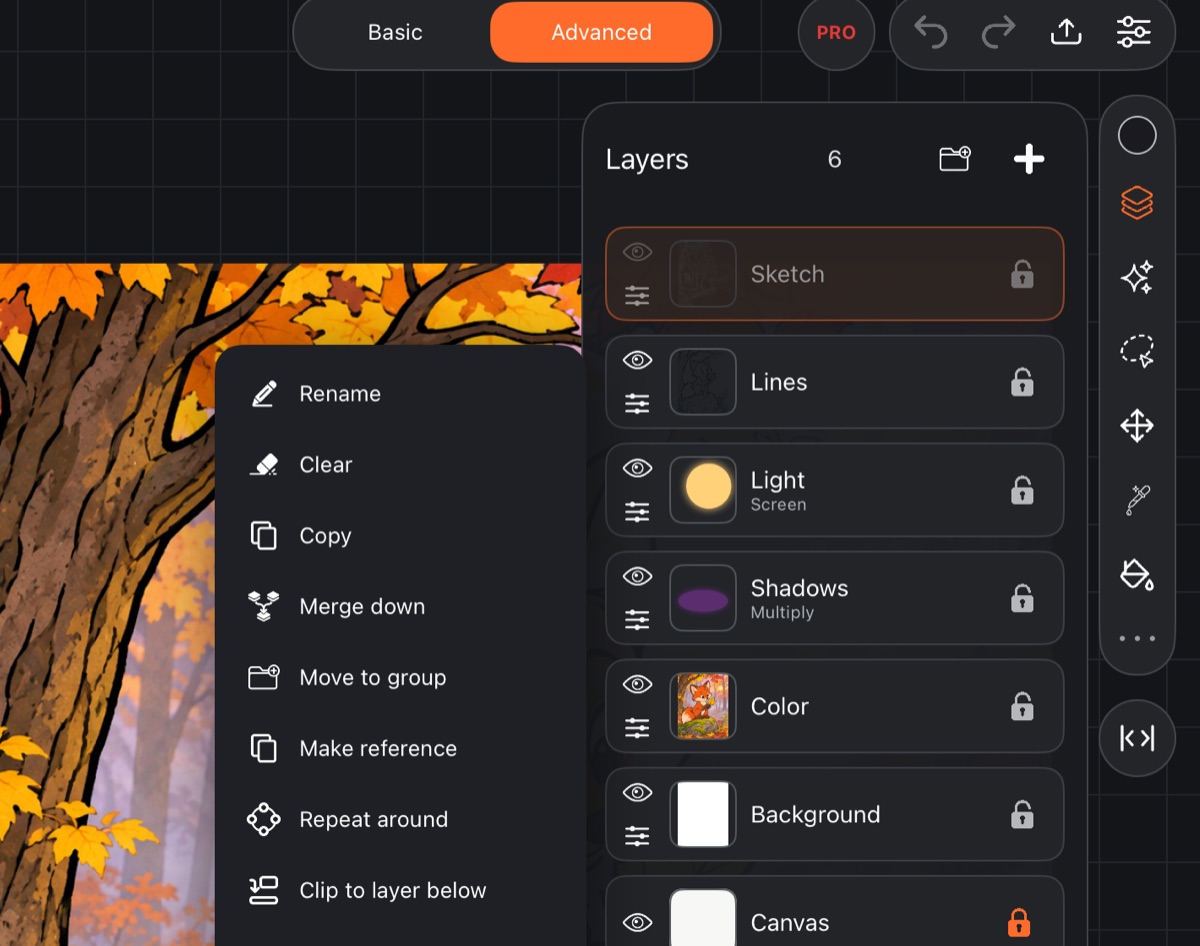
Three ways to limit where a layer's drawing shows or where paint goes – without erasing anything. All of them are in the layer menu: Layers → the menu icon under the eye in the layer row.
Layer mask
A mask hides part of a layer without erasing it: you can bring back what's hidden at any time.
Adding a mask
- Select the layer and choose Add layer mask in its menu.
- A mask icon appears in the layer row, already lit: the brush now paints on the mask.
While the mask is empty, the whole layer is visible.
Painting on the mask
- Select the layer. If the mask icon in its row isn't lit, tap it (Draw on mask) – the brush and fill now paint on the mask instead of the layer.
- Paint with the brush or fill.
- To paint on the layer itself again, tap the icon once more (Draw on layer).
On the mask, only the brush color matters:
- black hides the layer;
- white brings back what's hidden;
- gray hides it halfway;
- the eraser brings back what's hidden.
While the pen is touching the screen, a stroke on the mask shows as a gray trail; the real result appears when you lift the pen. If you select another layer, painting goes back to the layer's drawing.
Every layer with a mask shows the mask icon, but the icon switches the target only on the selected layer.
Applying or deleting the mask
In the menu of a layer with a mask:
- Apply layer mask – what's hidden is erased for good, the mask goes away, and the layer looks the same as before;
- Delete layer mask – the mask is removed and the whole layer is visible again.
The mask moves with the layer when you transform it and is copied along with it. Text layers can't have a mask – rasterize the text first.
Clipping to the layer below
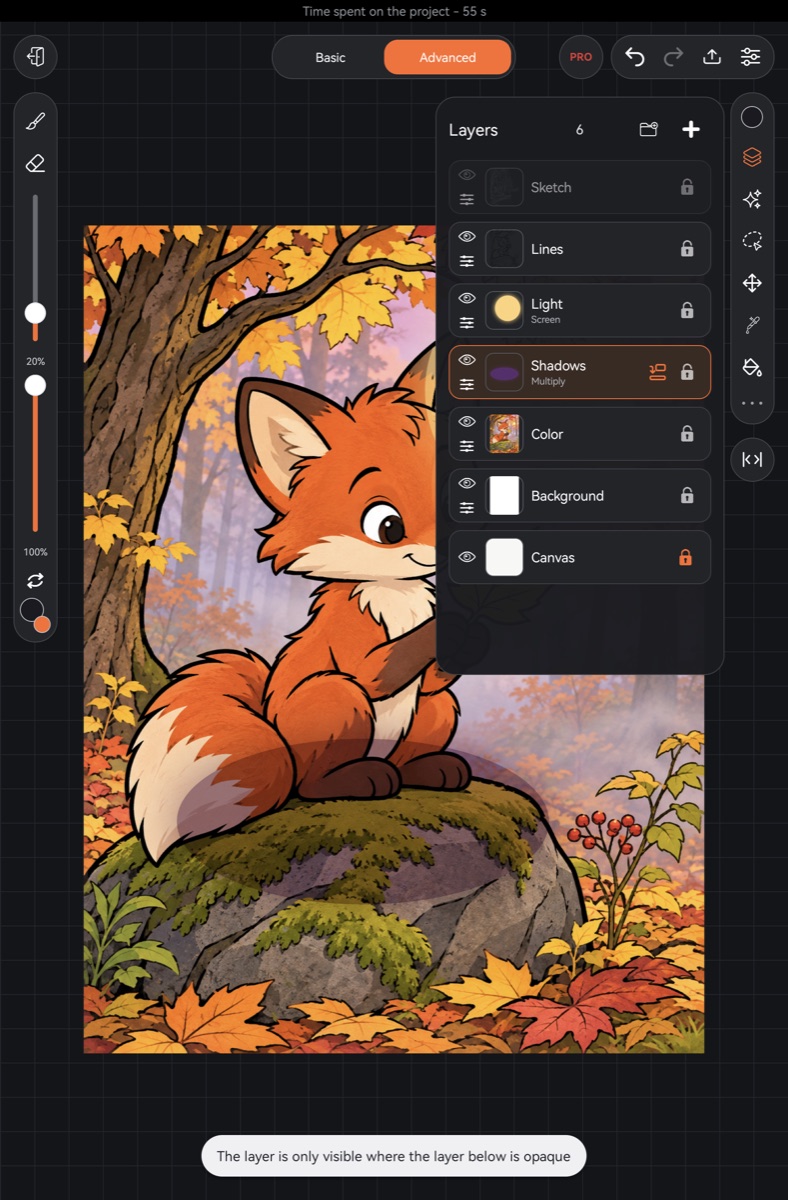
A clipped layer shows only where the layer below it is opaque. It's the easy way to put shadows, highlights or a pattern strictly inside an already painted shape without going over its edge.
- Draw a shape on one layer.
- Add a new layer above it.
- In the new layer's menu, choose Clip to layer below. You'll see "The layer is only visible where the layer below is opaque", and a clipping icon appears in the layer row.
- Paint on the new layer – the paint stays inside the shape.
Clip to layer below shows up in the menu only when there's a drawing under the layer. To turn clipping off, choose the same item again.
You can clip several layers in a row to one base: all of them show only within the nearest unclipped layer below.
Alpha lock
Alpha lock in the layer menu protects the transparent parts of a layer: the brush paints only where the layer already has paint. Use it to recolor a line or a shape without going outside it.
While alpha lock is on, its icon shows in the layer row. Choose the item again to turn it off.